Structure Maintenance 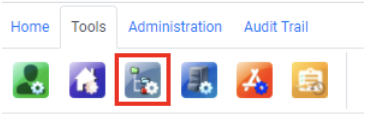
Introduction and Access
The Structure Maintenance function allows you to create, modify and delete your own folder structures.
To create a new Structure:
- Click on and open the Structure Maintenance icon and select New Template.
- Provide a name for your Structure and select Create.
- In the Folder Structures icon, right click on New Folder to expose the context menu. Then select Rename Folder and enter the required folder name to begin building your structure.
Using the context menu, you can continue to add folders to build your required Structure.
Set Folder Colour allows you to apply a colour to the selected folder. The colour that is selected will also apply to any other folders with that same name.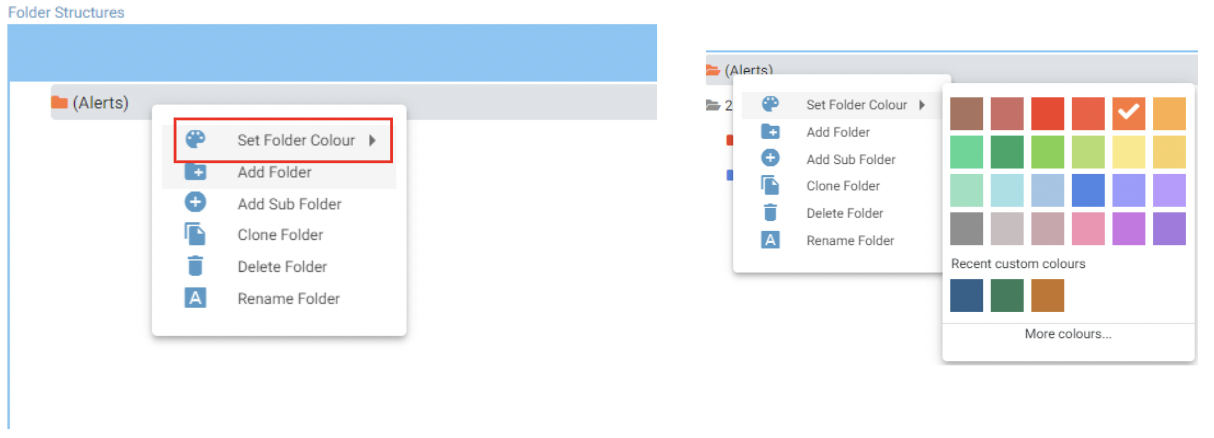
Add Folder allows you to create and add a folder to the selected location.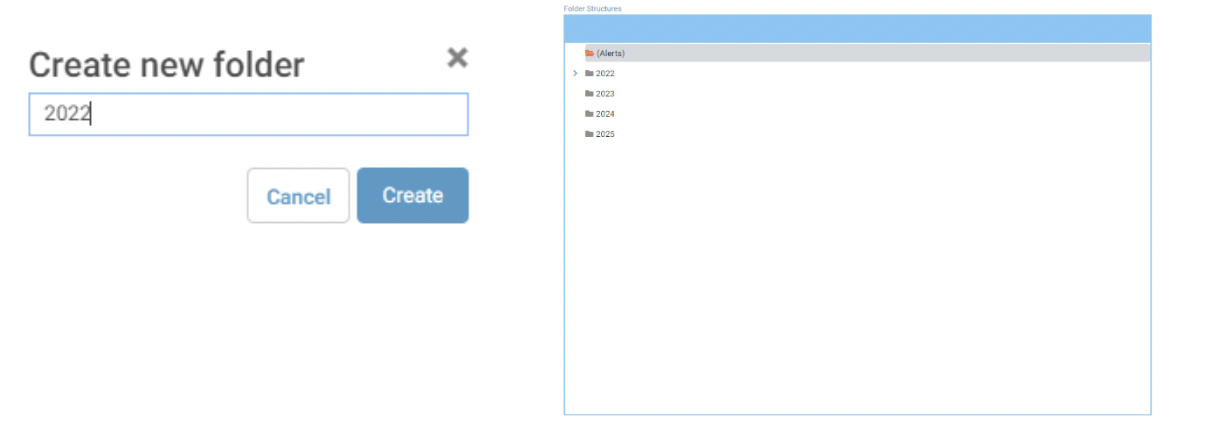
Add Sub Folder adds a sub folder to the selected folder.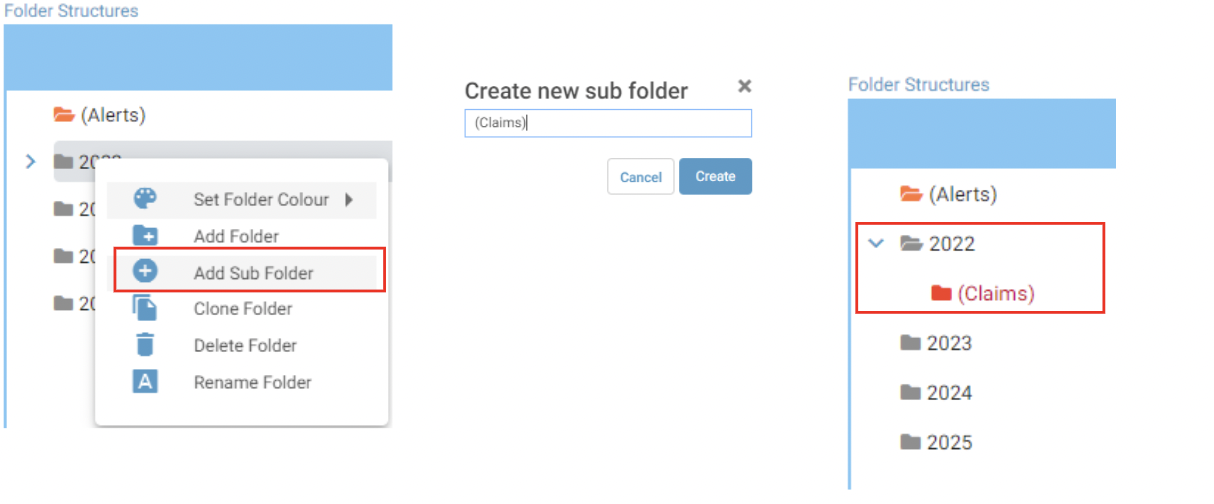
Clone Folder allows you to copy a folder and any of it’s subfolders to create a Clone of that folder.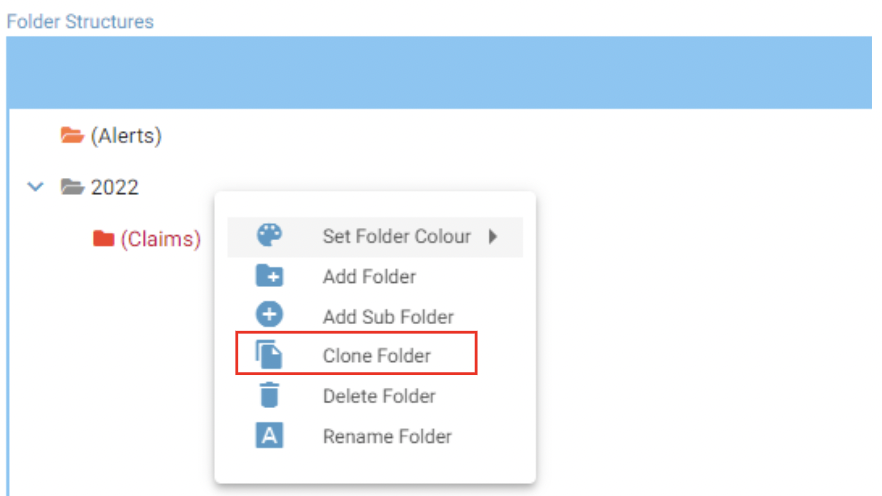
A window will open prompting you to give the cloned folder a name as per below and will create an exact replica of the parent folder with the new folder name.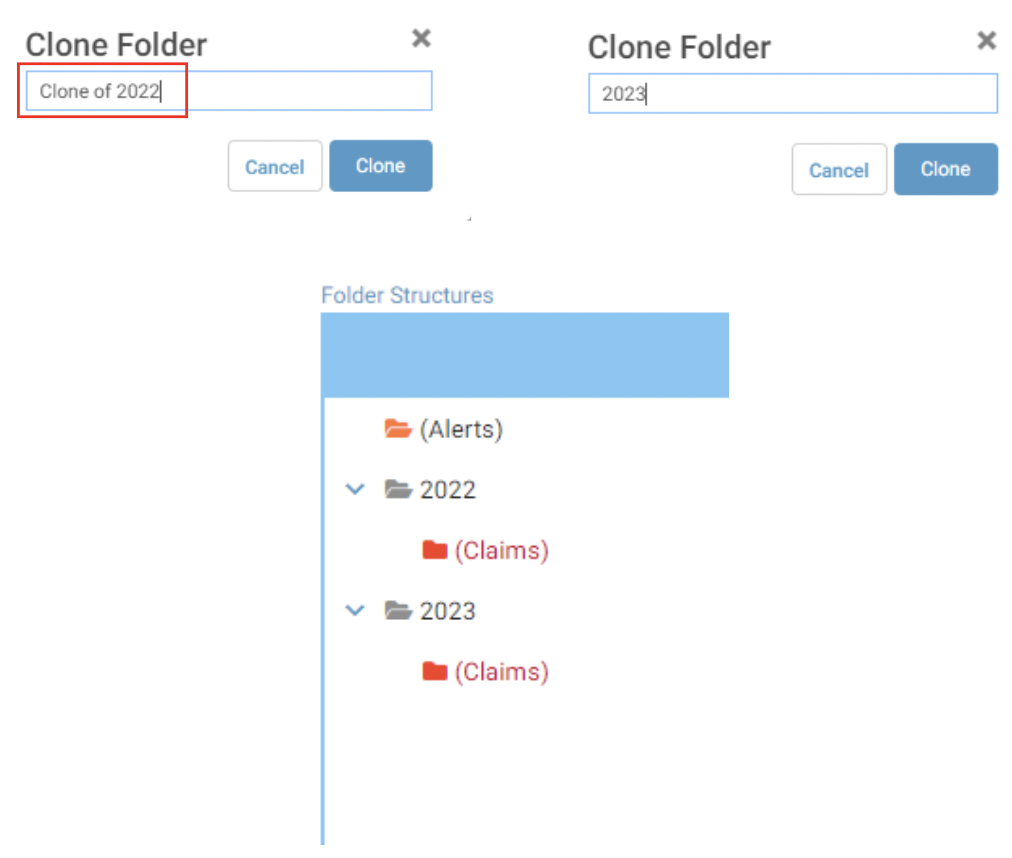
Delete Folder deletes the selected folder. You will be required to provide a 10-character reason for the deletion. Once you click Delete the folder will be deleted immediately.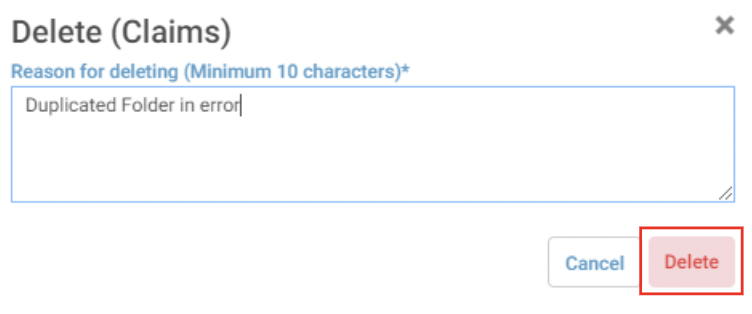
Once you have created your structure, you need to then select which Cabinet(s) the structure needs to be applied to. This will then make that structure available to be used when adding structures to folders with that Cabinet.
To make a structure available to a Cabinet in JAVLN Officetech simply highlight the relevant structure and then check the box adjacent to the relevant Cabinet and then click Save.
Was this article helpful?
That’s Great!
Thank you for your feedback
Sorry! We couldn't be helpful
Thank you for your feedback
Feedback sent
We appreciate your effort and will try to fix the article