Template Maintenance
Introduction and Access
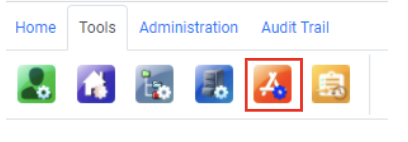
The Template Maintenance Function allows the JAVLN Officetech Administrator to control and maintain all Templates in the JAVLN Officetech system. The Template Maintenance icon can be found under the Tools icon and enables the Administrator to create, edit or remove Templates as required.
Template Folder Functions
Before you can load a Template into JAVLN Officetech, you must first create a folder for the Template to be stored. Folders and sub folders are created to categorise the different template files. To create the folders or sub folders, open the Template Maintenance window from the Tools menu.
Within the Template Maintenance window, you can add, rename or delete a Template Folder.
The Template Folder functions available include:
1. Add Template
To add a Microsoft Word, Outlook, or Excel template to JAVLN Officetech you must first create the document and save it as a template file as outlined below.
Ensure that you do not include any personal information in the template (e.g. email signatures, personal sign offs) as these will also appear when the template is used by other Users.
Create Template
To create a Template in Word, Outlook, Excel, or PowerPoint:
- Open the relevant MS Office Application
- Create the document as you would want the template to be, i.e., put onto letterhead, insert all text, create headers & footers etc
- Click File and then Save As from the Microsoft application menu
- Once the Save As option is selected the standard Save As window will display.
- From the drop-down menu of Save as type select Word, Outlook, Excel or PowerPoint Template as appropriate. It is critical that the file type be specified as a Template or it will not be available for you to choose from when it is time to load it in JAVLN Officetech.

- Change the file name of the template to be as you wish it to appear in the Template Menu list in OfficeTech
- Select a folder on your local PC where you want the file to be saved (this must be done last, as Windows will change the location once you select the Save as type as a Template)
- Click Save. On your desktop (or other chosen location) you will now have an icon as below, showing your new Template. A Template icon is discernible from a regular file icon by the bar on the top of the icon and the Type will be listed as a template, in this case Microsoft Word Template.
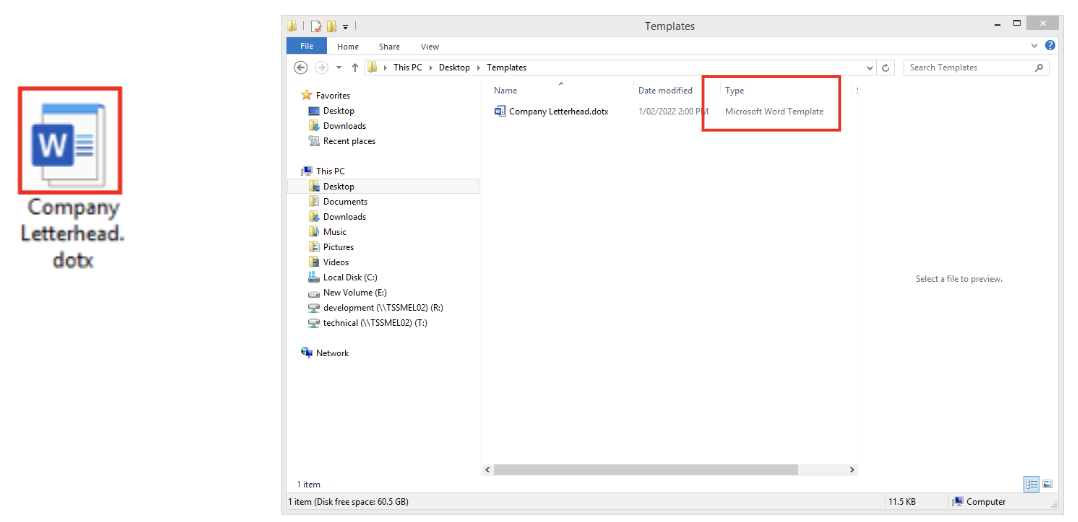
Note: Templates can be saved to any local drive on your PC in your Windows environment, as long you can easily locate and access them when loading the files into JAVLN Officetech.
Add Template
To load the templates into the Template Folders:
- Open the Template Maintenance function.
- Select the folder you wish to load the Template into from the left-hand pane of the Template Maintenance window and click the
 icon in the top right of the function to which will expose the Upload button
 and navigate you to your Windows Environment which will enable you to locate and select the relevant Template.
- Select the desired Template either selecting the Template and clicking Open, or by double clicking the Template File. This will load the Template into the Template folder.
Rename Template
- Open the Template Maintenance function
- Click on the 3 dots at the end of the Template you wish to rename which will open the context menu
- Choose Rename
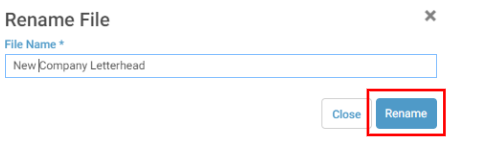
- Enter the New Name of the Template
- Click Rename
- Your Template will now display with its new name
Delete Template
- Open the Template Maintenance function
- Highlight the Template you wish to delete
- Click the Delete icon
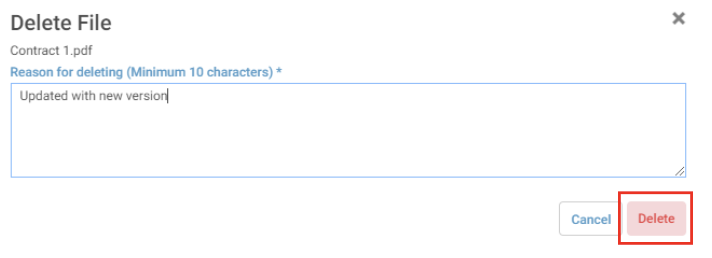
 which will prompt the Delete File window to pop up
- Give your reason for deleting the Template and click Delete
- Your Template will no longer be available for use
Move Template
- Open the Template Maintenance function
- Highlight the Template you wish to move
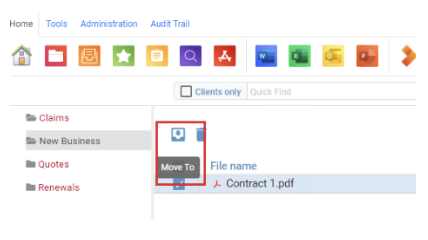
- Click the Move to icon
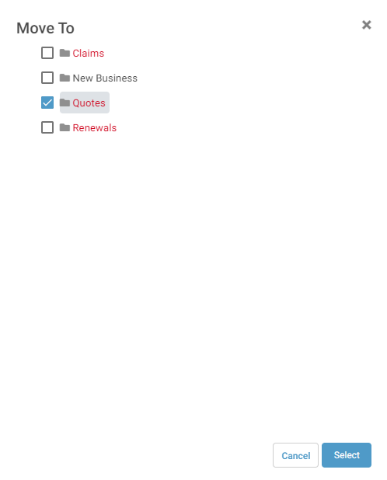
 which will prompt the Move Template window to pop up
- Choose the new destination for your Template and click Select
- This will move the Template from its existing location to the selected template folder
Note: If the Template you wish to rename, move or delete is showing as checked out you will need to check it back in before you can perform these actions.

To check a file back in click the 3 dots at the end of the row of the Template you wish to check back in and select Check in:

As soon as the status is cleared the file will be available for rename, move and delete functions

Edit Template
- Open the Template Maintenance function
- Highlight the Template you wish to Edit
- Click Open which will open the Template up to allow you to make any changes required
- Click the Save Icon
 application document’s toolbar
- Click the X to exit the document
- Your changes will now be reflected in the document
Note: The Edit Template instructions above only apply to MS Word & MS Excel documents as Microsoft Outlook templates need to be recreated in order to save amendments. This is because Outlook will not allow an edit on an existing template. PDF templates will also need to be recreated if a change is required.
Was this article helpful?
That’s Great!
Thank you for your feedback
Sorry! We couldn't be helpful
Thank you for your feedback
Feedback sent
We appreciate your effort and will try to fix the article