Client Maintenance
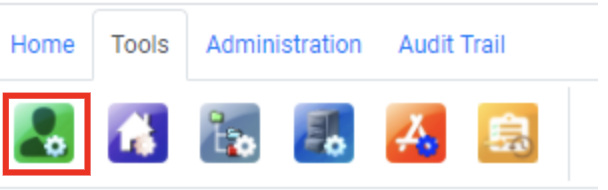
Introduction and Access
The Client Maintenance interface allows you to create, rename and delete any JAVLN Officetech Client.
It is very important to understand the difference between Client Maintenance and Folder Maintenance. Client Maintenance is used in the Client Cabinet to enable Users to add Client Structures and Client Structures folders as well as any other folder required whereas Folder Maintenance is used outside of the Client Cabinet to add structures, folders and subfolders in any other Cabinet where required.
Client Maintenance Functions
The Client Maintenance tools available to you include the following.



Add Client
To add a new Client to JAVLN Officetech:
Select Add Client

Enter the name of the Client and, if applicable, the Client ID. (Note the Client Code field is only applicable and would therefore be set as a Mandatory field in the event your system is integrated with a Broker Product, otherwise this field could be left blank)
Select the Client Structure and relevant Class(es) of Business as required.
Click Add and your new client will appear as per the window below and will also be created in OfficeTechNow with the selected structure folders
Rename Client
To rename a Client in JAVLN Officetech:
In the Client Maintenance Interface enter the required client name in the QuickFind field and select Rename

This will open the Rename Client window and allow you to rename the client. Make the changes required and select Rename. (Please note where integration with your Broker product is set to automatically rename your client, any client renaming should be done within the Broker product.)
Delete Client
To Delete a Client in JAVLN Officetech:
In the Client Maintenance Interface enter the required client name in the QuickFind field and select Delete

Enter a reason for the deletion of the client and select Delete. This will instantly Delete the client together with all the client folders and files.
Add Client Structure
To Add Client Structure in JAVLN Officetech:
In the Client Maintenance Interface enter the required client name in the QuickFind field and select Add Client Structure

This will open the Add Structure window where you can select the structure folder(s) you wish to add to the client.
Once you have selected the required structure folder(s), click Add and the selected folder(s) will be added to your Client.
Was this article helpful?
That’s Great!
Thank you for your feedback
Sorry! We couldn't be helpful
Thank you for your feedback
Feedback sent
We appreciate your effort and will try to fix the article