Cabinet Access Control (CAC)
Introduction and Access
The Cabinet Access Control (CAC) feature provides control access to the various Cabinets in your system. This security feature provides control at the Cabinet level (not the folder or subfolder level), and is managed by the creation of groups.
To access this function, click on the Cabinet Access Control icon in the Administration Icon.

Functions
The Cabinet Access Control function contains multiple functions and fields that provide control of which Groups can access specific Cabinets:


Create Group
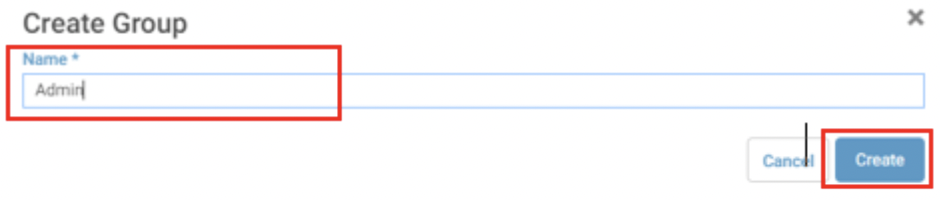
To Create a CAC Group in JAVLN Officetech
- Open the Cabinet Access Control function
- Click the
 New Group icon to add a New Group
- Allocate a name to the Group
- Click Save and your new Group will now be created
Assign & Modify Group Users
Once a CAC Group has been created, individual Users are assigned to that Group, which grants Users in that Group access to the specified Cabinets in JAVLN Officetech.
To add or modify the Users of a CAC Group in JAVLN Officetech:
- Open the Cabinet Access Control function
- Highlight the relevant Group in the Groups list
- Check or uncheck the boxes next to the Users to be included or deselected from the Group
- Click Save
Rename Group
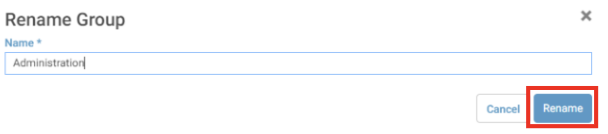
To rename a CAC Group in JAVLN Officetech:
- Open the Cabinet Access Control function
- Highlight the Group to be renamed in the Groups list
- Click the Rename icon

- Enter the name of the new group
- Click Rename and then click Save
Delete Group
To delete a CAC Group in JAVLN Officetech:
- Open the Cabinet Access Control function
- Highlight the Group to be deleted in the Groups list
- Click Delete
- A window will appear as below:

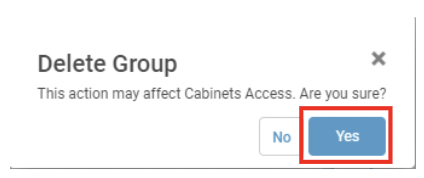
5. Click Yes
6. Click Save
Note: Once a Group is deleted Users will no longer be able to access any Cabinets assigned to them by that Group.
CAC Permissions
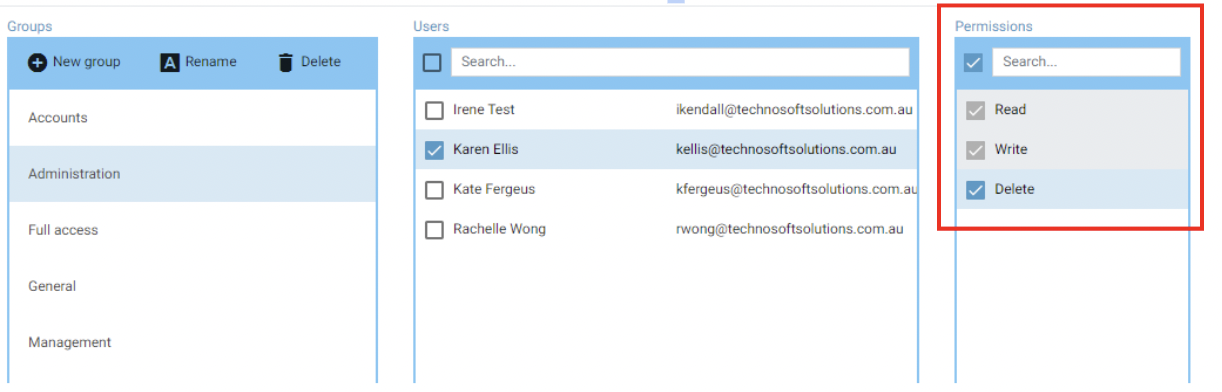
The Permissions assignable to an CAC Group include:
To modify the Permissions of a CAC Group in JAVLN Officetech:
- Open the Cabinet Access Control function
- Highlight the Group to be modified in the Groups list
- Check the boxes next to the Permissions to be granted in the Permissions list
- Deselect the check boxes to remove a permission
- Click Save
CAC Cabinets
To modify the Cabinets of a CAC Group in JAVLN Officetech:
- Open the Cabinet Access Control function
- Highlight the Group to be modified in the Groups list
- Check the check box next to the Cabinets to make them available to the Group
- Deselect the check boxes to remove a Cabinet from the Group
- Click Save
Note: If the User is logged in when a Group is modified, they will need to click on the Refresh button or log out and back into JAVLN Officetech to gain access to any new Cabinets or permissions. To refresh JAVLN Officetech click on the refresh button that is located next to the URL address bar at the top of the window.
Was this article helpful?
That’s Great!
Thank you for your feedback
Sorry! We couldn't be helpful
Thank you for your feedback
Feedback sent
We appreciate your effort and will try to fix the article