Cabinet Settings
Introduction and Access
The Cabinet Maintenance function allows you to create, modify, and delete any JAVLN Officetech Cabinet. Cabinets are given a filing Cabinet icon to differentiate them from folders.
The Cabinet Maintenance function applies to all Cabinets contained within JAVLN Officetech however, there are a couple of differences in the options Edit Cabinet offers:
- Edit Cabinet in relation to the Client Cabinet will only enable you to rename the Cabinet
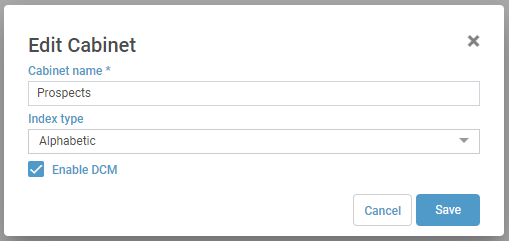
- Edit Cabinet for any other Cabinet will also allow you to set that Cabinet as a DCM Cabinet which will give you the ability to search for folders within that Cabinet in the Quick Find field and also apply additional permissions around adding structures, adding, moving, deleting and renaming folders.
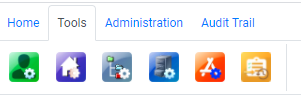
To access this function, click on the Cabinet Settings icon under the Tools icon.
Cabinet Settings Functions
The Cabinet Settings tools available to you include:
1. Add Cabinet
The Add Cabinet function allows you to add a new Cabinet to your JAVLN Officetech system.
To add a Cabinet in JAVLN Officetech:
From the Tools Icon>Cabinet Settings, Select Add Cabinet
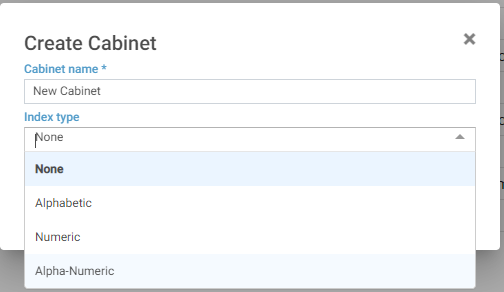
Enter the name of the new Cabinet in the Cabinet Name field and select the Index Type.
The Index Types available are:
None – The Cabinet will create without any subfolders
Alphabetic – This option will preload the Cabinet with a set of A-Z folders
Numeric – This option will preload the Cabinet folders a set of numbered folders
Alpha–Numeric – the Cabinet will create with subfolders containing both Alphabetic & Numeric characters
Enable DCM will allow for a folder name to be searched in JAVLN Officetech using the Quick Find field. For example, it will enable you to search outside the Client Cabinet for an Underwriter in the Underwriter Cabinet or a Prospect in the Prospect Cabinet if DCM is enabled. Enabling DCM will also allow for additional permissions to be granted such as Adding a new Underwriter or Prospect which can be set-up to create with pre-determined subfolders (structures) that you will have created in the Structure Maintenance function.
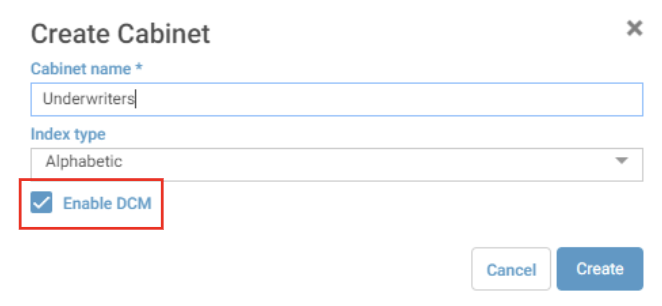

Once you have given the Cabinet a name, chosen the Index Type and ascertained if DCM is required, click Create
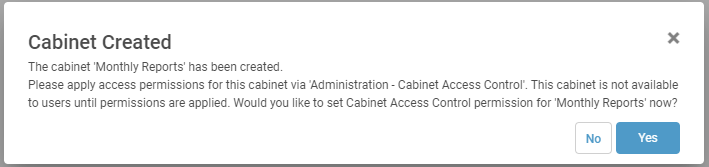
Once created, JAVLN Officetech will prompt you to open the Cabinet Access Control window to define which User Groups can see the new Cabinet.

By default, newly created Cabinets are not visible to any Users until the access permissions have been specified. You will need to grant access to the Cabinet in order for it to appear in your Cabinet list.
2. Edit Cabinet
The Edit Cabinet function allows you rename a Cabinet in JAVLN Officetech.
To rename a Cabinet in JAVLN Officetech:
- From the Cabinet Settings select Edit Cabinet
- Enter the new Cabinet name in the Cabinet Name field
- Click Save
3. Delete Cabinet
The Delete Cabinet function allows you delete a Cabinet in JAVLN Officetech.
Caution: Once deleted, all contents in the Cabinet will also be deleted – including all files and all subfolders.
To delete a Cabinet in JAVLN Officetech:
- Select the Delete Cabinet icon on the selected Cabinet
 2. Enter a brief explanation as to why you are deleting the Cabinet in the Reason for Deletion window
3. Click Delete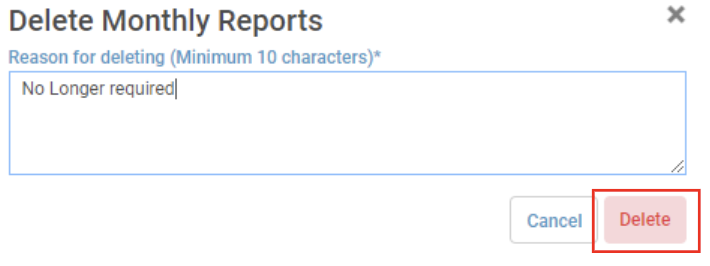
Was this article helpful?
That’s Great!
Thank you for your feedback
Sorry! We couldn't be helpful
Thank you for your feedback
Feedback sent
We appreciate your effort and will try to fix the article