User & Authentication Maintenance
JAVLN Officetech allows you to create your own Users directly.

Invite New User
To invite a new User:
- Navigate to the User and Authentication Maintenance Tab and click Invite New User.
- The User Information window will open to enter the details for the new user. Once completed, click Invite.
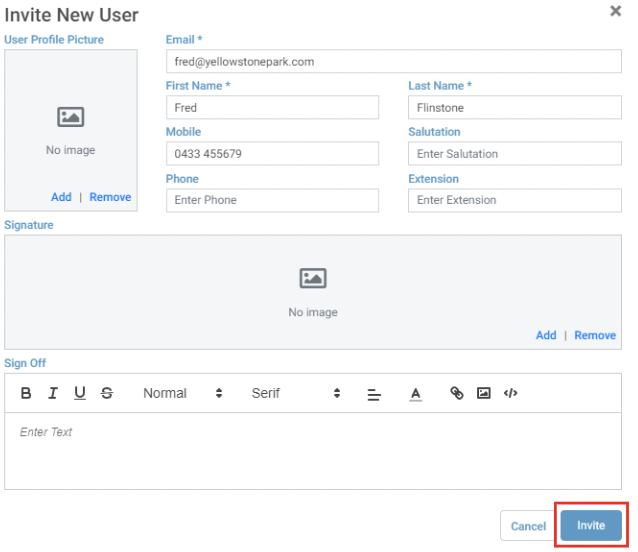
There are several fields of information that can be used when creating a new User (of which some are mandatory), including:
Edit User
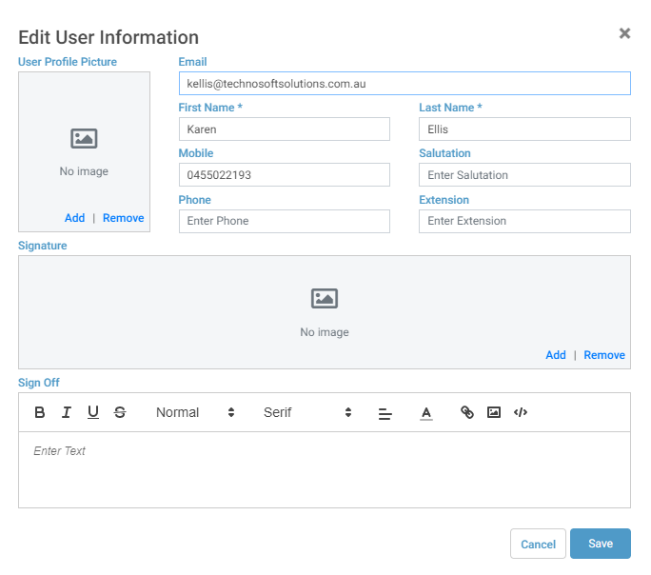
You may need to edit the properties of an existing User after creation to update an email address or phone number or to add a Signature image or Sign Off details to that User.
To modify a User in JAVLN Officetech:
- Open the Group Permission Maintenance function
- Highlight the User in the Users list
- Click Edit
- Modify any of the properties of the User as needed
- Click Save
Add User Signature
To add a User’s Signature to JAVLN Officetech:
Save the signature image file on your local PC. Acceptable formats for the file are JPEG, PNG, BMP, GIF
Navigate to the User & Authentication Maintenance window, select the User and click Edit.
This will open the User Information window, under Signature select Add. This will open your Windows environment and allow you to select the signature image you require to be loaded. Click Open to load the signature
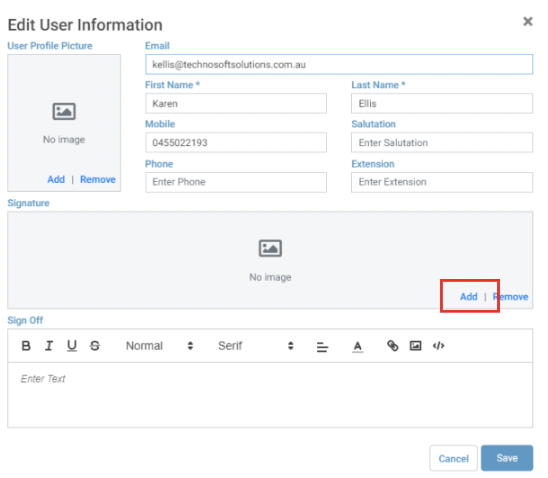
The User’s signature will now appear in the User Information window and will be available for the User to insert on MS Word & MS Excel documents.
Add User Sign Off
To add a User Sign Off in JAVLN Officetech:
Navigate to the User & Authentication Maintenance window, select the User and click Edit.
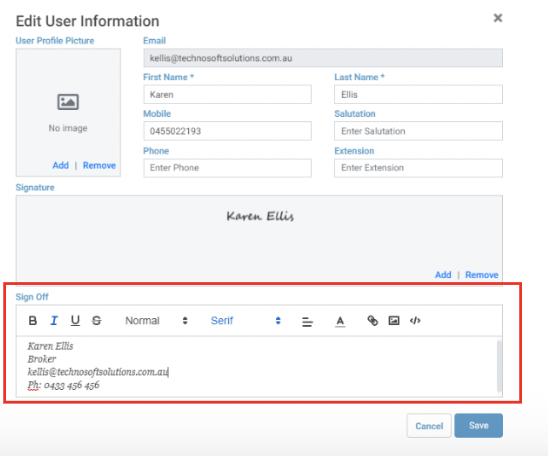
This will open the User Information window where you will be able to add the User’s required Sign Off details. You are able to format the Sign Off using the formatting tools such as Bold, Underline, Italics, Font Sizes and Types. You can also centre the text, change the text colour and add external links and images to the Sign Off. The formatting tools available are the same as those explained in the Homepage Maintenance section of this manual. Once the User’s Sign Off has been added click Save to save the changes made.
Delete User
Once a User is deleted from JAVLN Officetech they can no longer log in. However, they will still be listed in the Audit Trail against any action performed while they were active.
To delete a User in JAVLN Officetech:
- Open the User & Authentication Maintenance function
- Highlight the User in the Users list
- Click Delete
- A confirmation Check Box will appear
- Click Yes

If the User selected for deletion has active Tasks, a warning will generate preventing the User deletion until these tasks are either deleted or reassigned.

Deactivate User
To deactivate a User in JAVLN Officetech:
- Open the User & Authentication Maintenance function
- Highlight the User in the Users list
- Click Deactivate
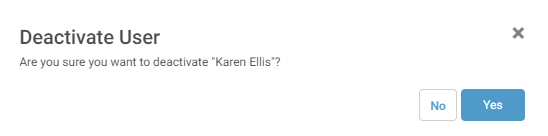
- A confirmation Check Box will appear
- Click Yes
New or Lost Phone: Request MFA/2FA Authentication Reset
1. Administration Function
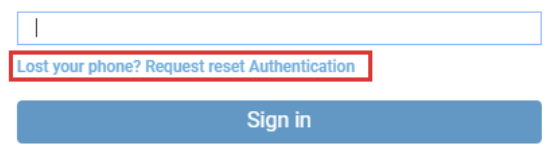
If a User has a new phone, lost their phone, or requires a reset of their MFA they can request an Authentication reset on the JAVLN Officetech login page.
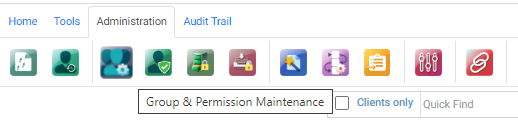
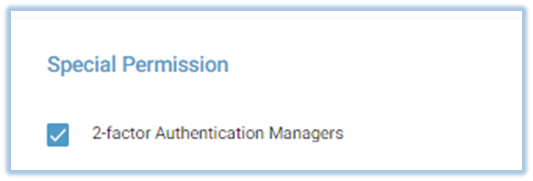
 In order to receive notification of the request Admin Users will need the Special Permission called 2-factor Authentication Managers. This can be found in User & Group Permission Maintenance function as shown below:
When a User requests a reset of their MFA, you will receive an email requesting authentication of the request.
- Click Go to JAVLN Officetech, you will be taken to JAVLN Officetech. You may be prompted to login if you are not already logged in or you will be taken to the User & Authentication Maintenance function where you will see the MFA request.
- Click Reset MFA. You will be asked to confirm the reset of your MFA.
- Click Yes
- The request will disappear in the User & Authentication Maintenance function.
- The User will now receive an email advising their MFA has been reset.
Was this article helpful?
That’s Great!
Thank you for your feedback
Sorry! We couldn't be helpful
Thank you for your feedback
Feedback sent
We appreciate your effort and will try to fix the article