Import Task Template Maintenance – INSIGHT
Create Import Task Template
JAVLN Officetech offers a feature to bulk create Renewal tasks based on a report generated from INSIGHT.
You will need to create an Import Task Template to enable this feature. The Import Task Template is created based on your business’s workflow process.
To set up an Import Task Template:
- Navigate to the Import Task Template Maintenance icon in the Administration Icon of the JAVLN Officetech function which will open the Import Task Template Window. Select Add Import Template.
- Enter a name for your Import Task Template and then complete the fields in the Create Import Template window according to your required business processes.
Each field will offer a different option as to the input of the information required to be completed
Assigned To allows for the person in the Assigned To field of the Task to be a member of the Sales or Service Team in INSIGHT or can be attributed to a specific OfficeTech User
Start & End Date allows for you to either get a date from the report that will reflect the date that you want the Task to start and/or end at or calculate date based on the number of weeks before or after the Start or Renewal dates from the Report.
Allow Extension Options are True or False
Selecting False on Allow Extension means that the Task will become overdue immediately upon reaching the end date. No values are selected when this field is set to False
Enabling True on Allow Extension will allow for the Task User to extend the end date of the Task. As can be seen by the example below the Task will be able to be extended for a further two weeks after the Renewal Date as specified on the Report.
The Priority of the Task can be set by selecting the required Value in the Value field.
Note: The Priority must be already available in the System Admin Wizard of JAVLN Officetech.
There are three ways to import the Entity into the Task:
Get Client by ID will utilise the Client ID data from the INSIGHT Report

Get Client by Client Name will utilise the Client Name data from the INSIGHT Report

Get Client by Reference code will utilise the Client Ref data from the INSIGHT Report

The Category of the Task can be set by selecting the required Value in the Value field.
Note: The Category must be already available in the System Admin Wizard of JAVLN Officetech.Custom Fields are explained in detail in the Task Template Maintenance section of this manual. If you have any additional or custom fields set up, the values of these will be automatically be available to be selected in the Import Task Template Maintenance window
The Status of the Task can be set by selecting the required Value in the Value field.
Note: The Task Status must be already available in the System Admin Wizard of JAVLN Officetech in order for them to be selected as a Value in the Import Task Template.Once you are satisfied with your selections, click Save
Importing Tasks
To import the Tasks into JAVLN Officetech:
Within the Task function navigate to the Import Button

This will open a window and allow you to select the relevant Renewal Report together with the relevant Import Task Template.
Select Browse to find the renewal report you have saved to one of your Windows Explorer folders. Select the required report and Open
Select the Import Template drop arrow to view the Import Templates that are available. Select the required Import Template
Select Import.
You will receive a prompt asking if you would like to view the Import Task History.
Select Yes
This will open the Import Task History window (mentioned earlier in this manual) where you can see if the Import Task process has been successful.
You will receive one of three notifications:
Failed – you can view the reasons for the failure by selecting the link to the Reasons for Failure button which will load the Failed to Import Tasks window so you can see where the import process failed
In Progress – the Renewal Import is in progress
Successful – The Renewal Import was successful. You will now be able to view the report
Import Task Template Maintenance – WinBEAT
Create Import Task Template
JAVLN Officetech offers a feature to bulk create Renewal Tasks based on a report generated from your broking system.
You will need to create an Import Task Template in order to enable this feature. The Import Task Template is created based on your business’s workflow process.
Before you create the JAVLN Officetech Task Template you should generate a future dated Renewals Pending Report in WinBEAT. It is recommended that this report is created in in Account Manager sequence to ensure the Account Manager name is included in the report.
Export the report to CSV and open it.
Save the report in xls format which is the required format for the Task Template import process.
It is important to know the column heading to understand which WinBEAT data fields to include in the Task Template.

To set up an Import Task Template:
In the Administration Icon, navigate to the Import Task Template Maintenance function.
This will open the Import Task Template Window. Select Add Import Template.
The Create Import Template dialog box will be displayed.
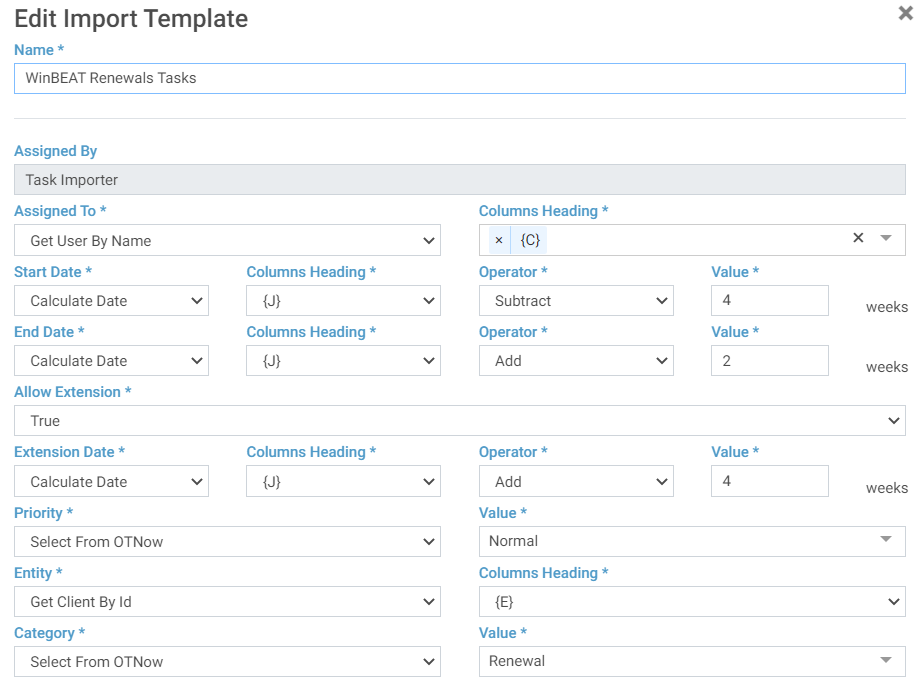
Enter a Name for your Import Template and then complete the fields in the Create Import Template window according to your required Task processes.
Each field provides a different option as to the input of the information required to be completed:
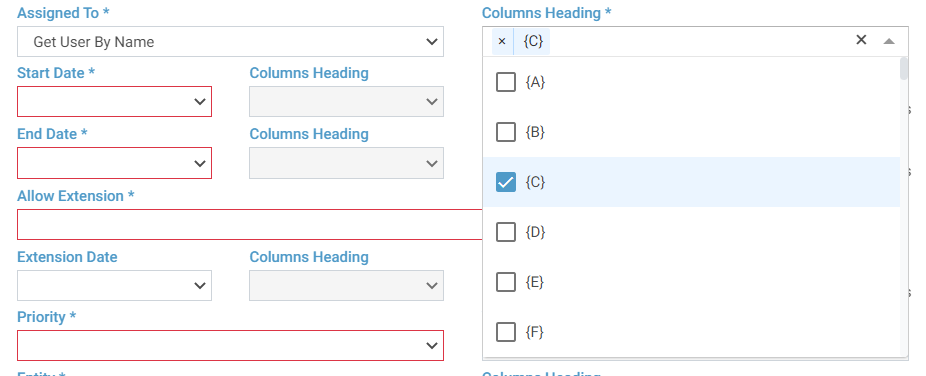
Assigned To allows for the person in the Assigned To field of the Task to be the Account Manager in WinBEAT, using “Get User by Name”.
For this to work each WinBEAT Account Manager must be set up as a user with the same name in JAVLN Officetech.
Note: The WinBEAT Account Manager Abbreviation is used in the Renewals Pending report.
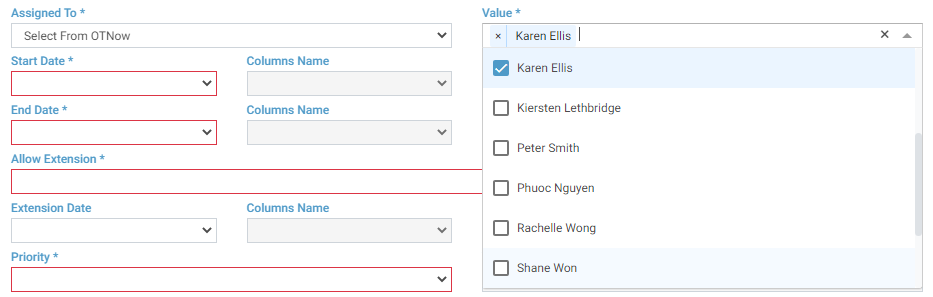
Alternatively the task can be attributed to a specific JAVLN Officetech User by selecting the “Select From OTNow” option from the drop down
If you select Get User By Name you will be required to select the Columns Heading from the WinBEAT Renewals Pending .csv that corresponds to Account Manager Name. Column C in this instance:

Alternatively Select from OTNow will assign the generated tasks to the specified OTNow user:
The Start Date and End Date fields allow you to either get a date from the report that will reflect the date that you want the Task to start and/or end, or calculate the date based on the number of weeks before or after the policy Renewal date from the renewals pending report.
To calculate a Renewal Task start date for example:
Column J is current policy expiry date in the Renewals pending .csv:

Select Calculate date
Columns Heading J
Operator Subtract
Value the number of weeks before Expiry you want the task to start

Allow Extension will allow you to select if you want the Task to become overdue upon reaching the End Date or if you will allow the Task owner to be granted an Extension to allow more time to complete the Task.
Enabling False on Allow Extension means that the Task will become overdue immediately upon reaching the end date. No values are selected when this field is set to False

Enabling True on Allow Extension will allow for the Task User to extend the end date of the Task. As can be seen in the example below the Task will be able to be extended for a further two (2) weeks after the Renewal Date specified on the Report.

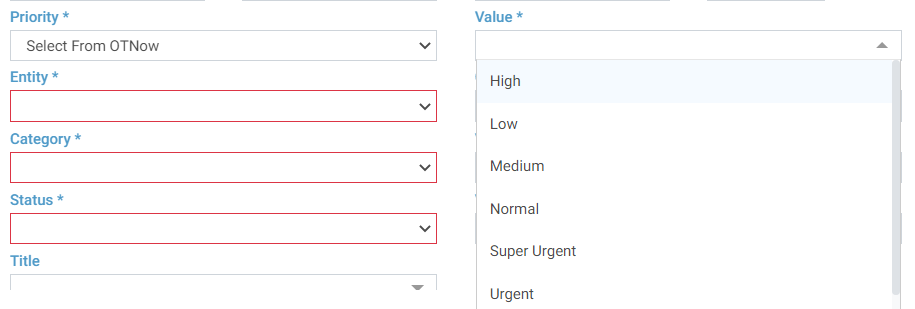
The Priority of the Task can be set by selecting a Value from the Value drop list.
Note: The Task Priority must be already available in the System Admin Wizard of JAVLN Officetech
There are three ways to import the Entity into the Task however the only relevant method for a WinBEAT Renewals Pending Report is to utilise the Client Code.

Selecting Get Client by ID will use the Client Code data from the WinBEAT Report. You must select the related column from the Renewals Pending.xls:

The Category of the Task can be set by selecting the required Value in the Value field. Note: The Category must be already available in the System Admin Wizard of JAVLN Officetech in order for them to be selected as a Value in the Import Task Template. Refer Task Categories.
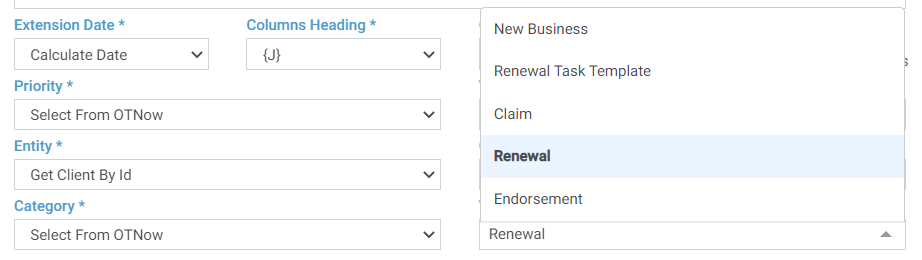
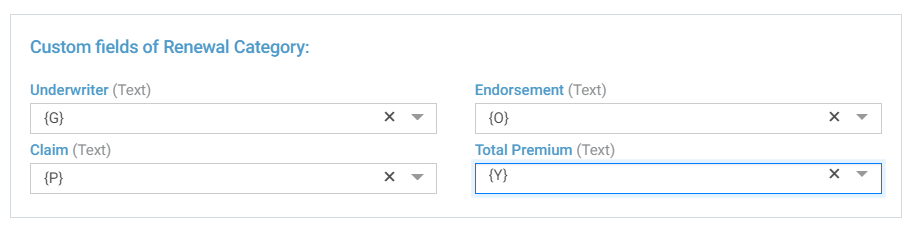
Custom Fields are explained in detail in the Task Custom Field section of this manual.
If you have any additional or custom fields set up, the values of these will automatically be available to be selected in the Import Task Template Maintenance window.
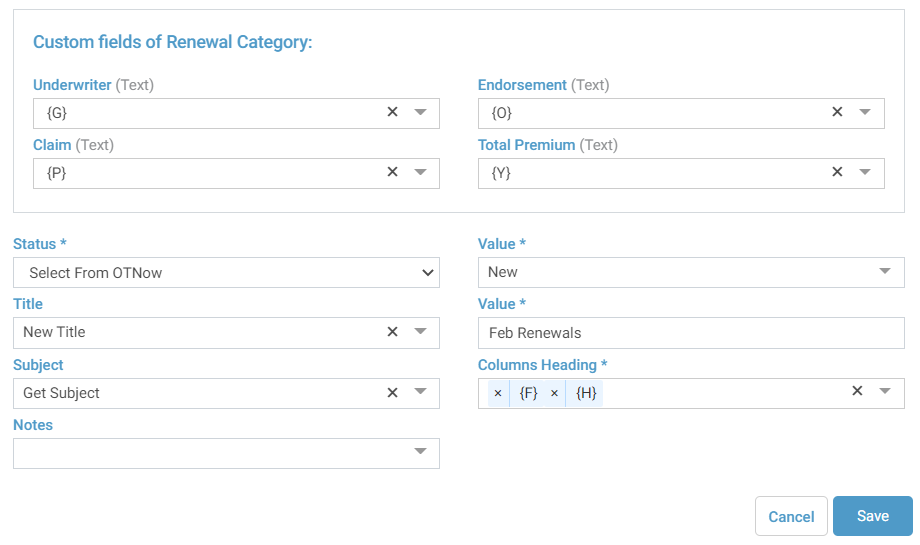
For example; we have added custom fields using the Task Template Manager so we can include the Underwriter, the Endorsement flag, the Claim flag and the Total Premium in our Renewal task:
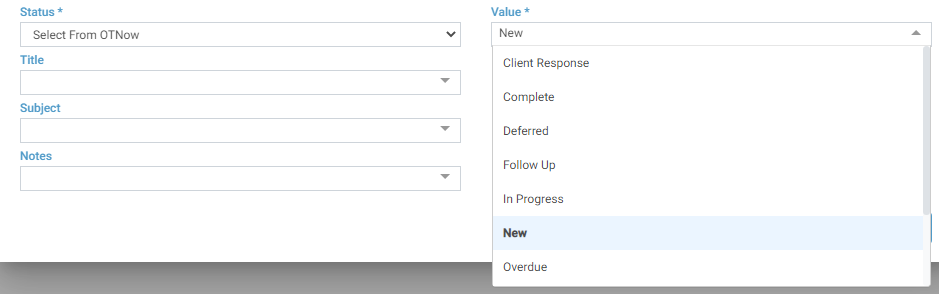
The Status of the Task can be set by selecting the required Value in the Value field.
Note: The Task Status must be already available in the System Admin Wizard of JAVLN Officetech in order for them to be selected as a Value in the Import Task Template.
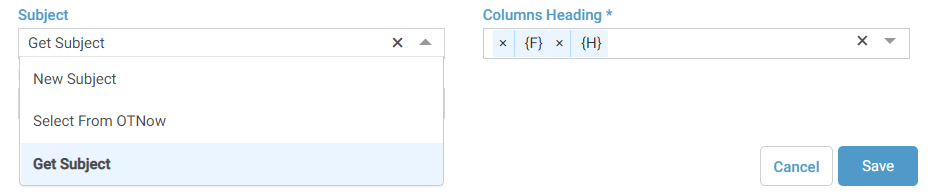
You can optionally add a Title, Subject and Notes which can be created by the task or obtained from the source data.
It may be useful to “Get Subject” and add some details from the renewals pending report that will be useful to the use.
In the following example we have add the Policy Class Abbreviation {F} and the Policy Number {H} to be the subject of the Task.
Once you are satisfied with your selections, click Save
Edit the Template
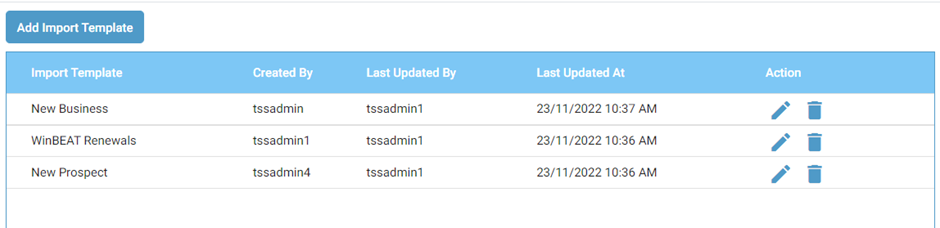
You can edit the Import Template at any time:
In the Administration Icon, navigate to the Import Task Template Maintenance function.

The available templates are displayed. Select the next to the Template you want to change.

Importing Tasks
To import the Tasks into JAVLN Officetech:
Navigate to the Home Page and select the Tasks function

Within the Task function select the Import Button. This will open the Import tasks dialog box and allow you to browse to select the required Renewal Report together with the relevant Import Task Template.
Select Browse and navigate to the WinBEAT Renewals Pending report you will have saved to one of your Windows Explorer folders
Select the required WinBEAT Renewals Pending Report in .xls format. Click the Import Template drop arrow to view the Import Templates that are available: Select the required Template.
Select the Import button.
A prompt asking if you would like to view the Import Task History. Select Yes. This will display the Import Task History window (mentioned earlier in this manual) where you can view if the Import Task process has been successful.
You will receive one of three notifications:
Failed – you can view the reasons for the failure by selecting the link to the Reasons for Failure button which will load the Failed to Import Tasks window so you can see where the import process failed:
In Progress – the Renewal Import is in progress
Successful – The Renewal Import was successful. You will now be able to view the report
Click on View Report to view the details:
Note: You can use this process to automatically create and allocate tasks using source data created from your broking system reporting function.
The Tasks have been automatically created for the designated user/s:
Was this article helpful?
That’s Great!
Thank you for your feedback
Sorry! We couldn't be helpful
Thank you for your feedback
Feedback sent
We appreciate your effort and will try to fix the article