Task Template Manager
Introduction and Access
The Task Template Manger allows you to create and modify Task Templates, including workflow steps that provide guidance and instructions for the completion of the Task.
To access the Task Template Manager in JAVLN Officetech, click on the Task Template Manager icon under the Administration Icon.

Functions
The Task Template Manager function contains multiple features and tools that provide control of the creation of Task Templates and associated Steps.
Any changes made to any Task Template or Step automatically applies to all active Tasks.
The functions and fields available in the Task Template Manager function include:


Create New Task Template
To create a Task Template:
- Open the Task Template Manager
- Click Create
- Select the Category the new Task Template applies to and click Create
- Once the Task Template is created you add Task Steps and, if required, additional Task Fields.
Create Task Step
To Create a Task Step:
- Select the category from the Current Task Templates list
- Click Create
- The New Step window opens
- Apply a Name to the Task Step. The name should be indicative of the action that the User is to complete
- Select the type of Task Step required for the task
- The following Step options are available:
1. Simple Step
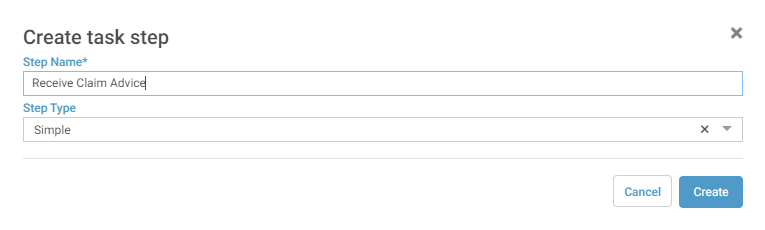
A Simple Step outlines what needs to be done to progress the Task to the next phase of the transaction. Clicking on a Simple Step will change the colour of the step to blue and as such shows at a glance where in the workflow the Task is currently up to. Task notes should be made when the step is selected to indicate the actions completed.
2. Text Box Step
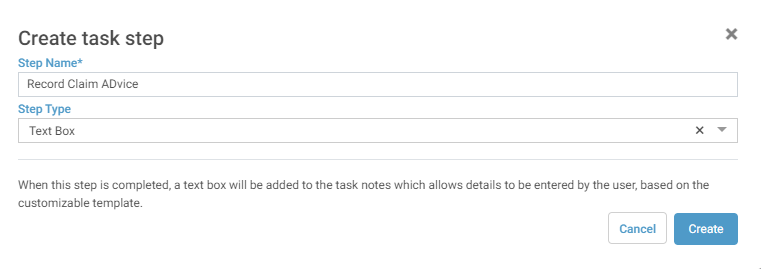
A Text Box step will allow for predetermined questions to be loaded into the Task for the user to complete once that step has been selected.
When a Text Box step has been clicked on, the questions or text will appear in the Task prompting to user to update the Task with the information required. Within the Text Box, data can be entered up until the Save or save & Close buttons are actioned. Once the Task is saved the Text Box becomes a locked field and cannot be further edited.
3. Reassign Step
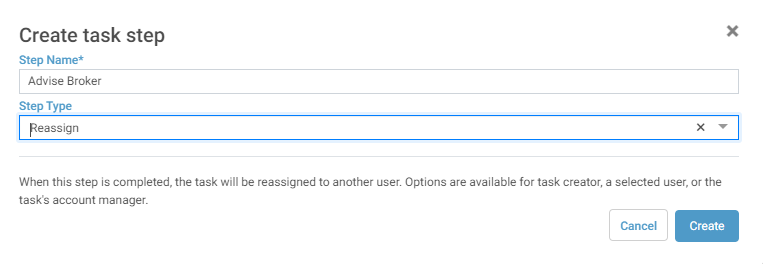
The Reassign Step option allows for the Task to be assigned to another JAVLN Officetech User at a predefined step of the transaction process such as to the Account Manager to review and approve an action.
You can define who the Task is be reassigned to by selecting a specific JAVLN Officetech User, the Task Creator (the original creator of the Task) or the Account Manager (the User listed in the Account Manager Field of the Task).
4. Email
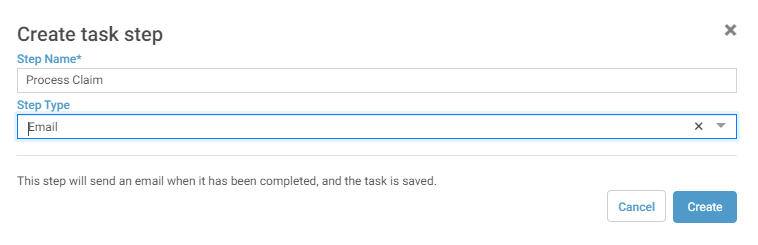
An Email step will open a predetermined email template that is saved in the business’s Templates section of JAVLN Officetech. This indicates to the user updating the Task that they should use this particular email at this stage of the Task process.
5. Open Template Step
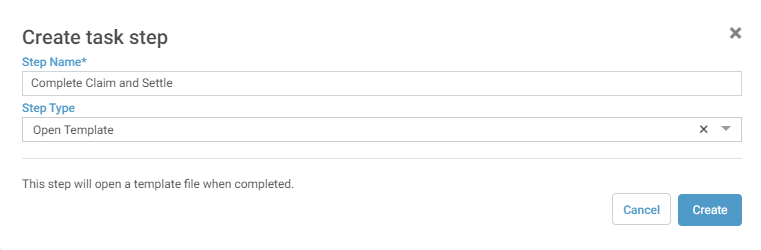
An Open Template Step can either allow for a pre-determined template document (other than an email template, i.e., PDF, Word, Excel or PowerPoint document) to open when this step is selected or for the step to open the Template window for the user to select any of the Templates from the available JAVLN Officetech Templates.
These options are predefined when setting the Task Template up by either choosing for the Template to be User Selected or a Set File.
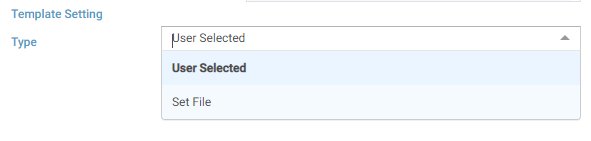
Selecting User Selected will open the Templates window for the User to select the required Template whereas selecting Set File will allow for a specific Template to be loaded.
The difference between Open Template Step Type and the Email Template step type is that the Email Template step type will only allow for an email template to be attached to the relevant step but the Open Template>Set File option allows for any other file type to be selected to be used for that particular Task Step.
Once the Step type has been assigned the following will need to be ascertained:
- Define if the Step is to be dependent on a previous Step by checking the box(es) on the previous steps that the current step is to be dependant upon. By checking the box this will ensure that a user will not be able to save a Task until they have completed the dependant step(s).
- Enter the Step Tooltip message you want to be displayed when a User hovers their cursor over the Step in the Step Tooltip field
- Select the Step Icon that best represents the action from the Step Icon dropdown. This icon will appear in the Task Window.
- Continue to add the required Task Steps to the selected template to build the Task Template.
- Once all fields are correct click Save
Copy Task Template
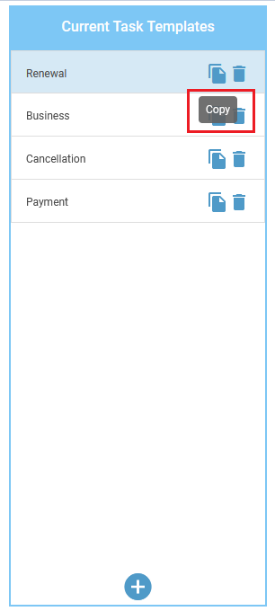
- Users will have the ability to select and copy an existing Task Template to use as the base of a new template.
- Once you select to copy the Template, it will prompt for a new category to apply to the new template.
Delete Task Template
To delete a Task Template:
- Open the Task Template Manager
- Highlight the Task Template to be deleted
- Click Delete
- The Template will be immediately removed from the Current Task Templates list
- Click Save or Save & Close
Edit Step
JAVLN Officetech allows you to edit the existing Task Steps of a Task Template.
To edit an existing Task Step:
- Open the Task Template Manager
- Highlight the Task Category that the Task Step applies to in the Current Task Templates field
- Highlight the Task Step to be edited in the Steps field
- Click Edit
- Edit the Step parameters as required
- Click Save
Any changes made to a Task Template or Task Step automatically applies to all active Tasks of that Category.
Delete Step
JAVLN Officetech allows you to delete an existing Task Step of a Task Template.
To delete an existing Task Step:
- Open the Task Template Manager
- Highlight the Task Category that the Task Step applies to in the Current Task Templates field
- Highlight the Task Step to be deleted in the Steps field
- Click Delete
- Click Save
Any changes made to a Task Template or Task Step automatically applies to all active Tasks of that Category.
Move Step Up/Down
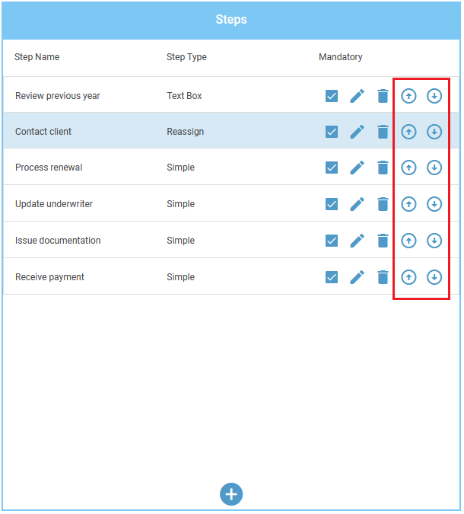
The function of these buttons is to reposition the Task Steps into the desired order. This is useful if you have created a Task Template and realise you want to reorder the steps into a more logical or workflow order.
To Move a Task Step:
- Highlight the Task Step in the Steps Listing
- Click either Up or Down according to your requirements.
Manage Task Fields
JAVLN Officetech allows you to add additional input fields to Task Windows, enabling you to capture specific information within a Task.
The Manage Task Fields function contains the following functions:
Create a Task Field
To add an additional Task Field:
- Open the Task Template Manager
- Highlight the Task Category that the additional field applies to or create a new Task Template if not listed in the Current Task Templates field
- Navigate to Task Fields
- Click Manage and then select the
 icon
- Define the Field Name, Type, Mandatory status, and the order of the additional fields using the Arrow buttons
- Once you give a field a Field Name you need to allocate the Type of field. The Type options that are available are User, Text, Date and any Custom Task Field that may have been created in the System Wizard as per the Custom Task Field section earlier in this manual
- Save or Save & Close
If a Custom Task Field is selected the values that were applied to that field in the System Admin Wizard will be available as a drop-down option in the Task.
The JAVLN Officetech system allows one additional field to be added to the List View of columns in the Task function. To define this column, select Show in Grid as can be seen in the image shown below.
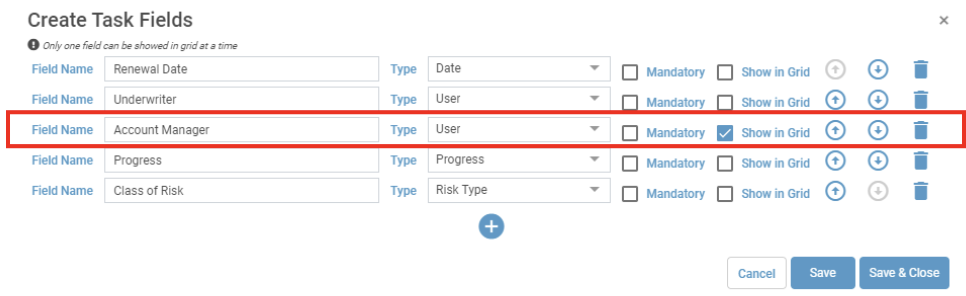
This will then create a column in the Task Function for this field.
Selecting the Category from the Category drop down will display the associated Task Template Steps as well as any additional fields that have been created.
Was this article helpful?
That’s Great!
Thank you for your feedback
Sorry! We couldn't be helpful
Thank you for your feedback
Feedback sent
We appreciate your effort and will try to fix the article