If users are experiencing an issue where the save process prompts them to log into Officetech, even though they are already logged in, there are two fixes for this:
1. Right Clicking on the Log in Window that pops up and clicking to Refresh will display a JOT screen inside the current login window. Close this window and select the file to save again, should load the save form correctly. (note if the refresh doesn’t work, then entering your login credentials and OTP should allow you to save the email.)
2. If the issue continues to occur, users should follow the steps below:
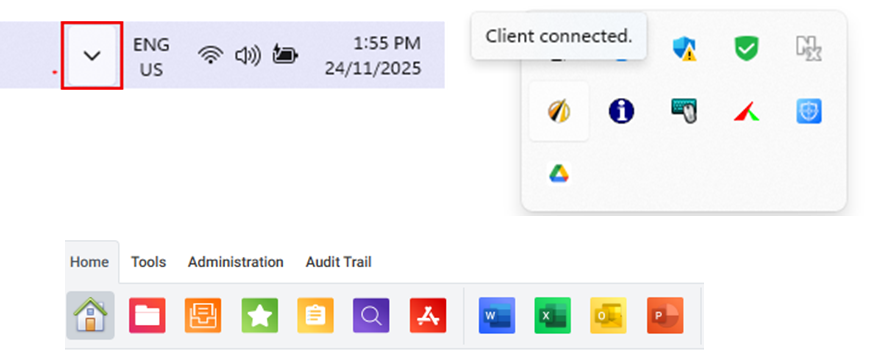
a. Navigate to where the date & time appears on your tool bar - click to open the down arrow icon.

b. The menu will open to expose icons similar to below. Right click on the JAVLN Officetech Service Hook icon,
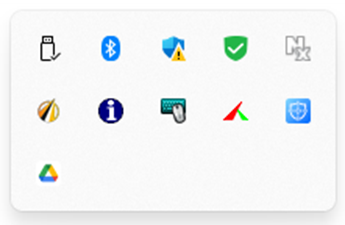
c. Select Exit to exit the application.
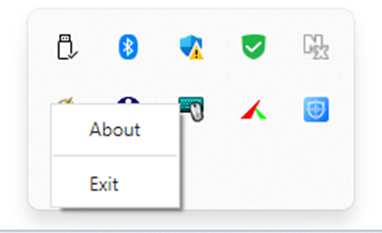
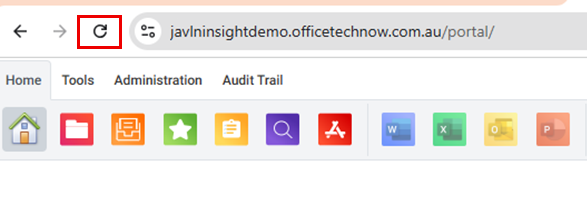
d.You will see that your Microsoft Office 365 icons are currently greyed out. Navigate to the refresh button and click to Refresh your Officetech program.
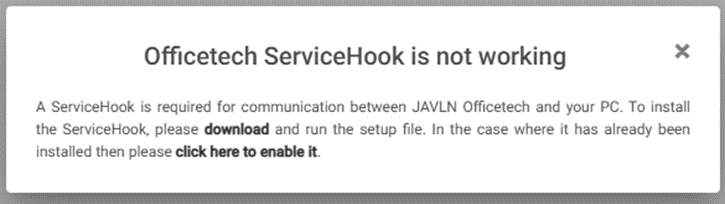
e. You will receive the message that the Officetech Service Hook is not working. Click to enable the Service Hook
f. If you navigate back to your down arrow within your toolbar and hover over the Service Hook it should now show as Client Connected and your Microsoft 365 icons should now show in a bright colour to indicate that the Service Hook is installed correctly.
If you are using Google Chrome as your internet browser, ensure that the local network access permission is enabled. 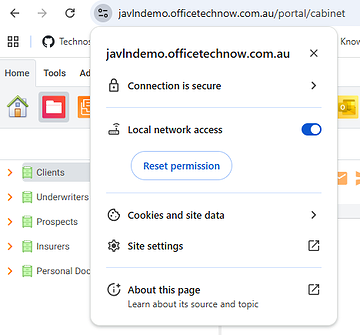 |
Was this article helpful?
That’s Great!
Thank you for your feedback
Sorry! We couldn't be helpful
Thank you for your feedback
Feedback sent
We appreciate your effort and will try to fix the article