 How to check, update and install the JAVLN Officetech ServiceHook and Outlook Add-in How to check, update and install the JAVLN Officetech ServiceHook and Outlook Add-in |
This guide shows you how to check which versions of the JAVLN Officetech ServiceHook and Outlook Add-in are on your computer, then update them or install them fresh. Start by comparing your versions with the latest ones below.
Latest versions (October 2026)
| Component | Name in Programs and Features | Latest version |
| ServiceHook | officetechnow.servicehook | 1.1.36 |
| Outlook Add-in | OfficeTechNowOutlookAddIn | 1.1.2.61 |
1. Check your installed versions
- Press the Windows key (or click Start), type appwiz.cpl and press Enter. This opens Programs and Features.
- Scroll through the list to find officetechnow.servicehook (its name may end with the version number) and OfficeTechNowOutlookAddIn.
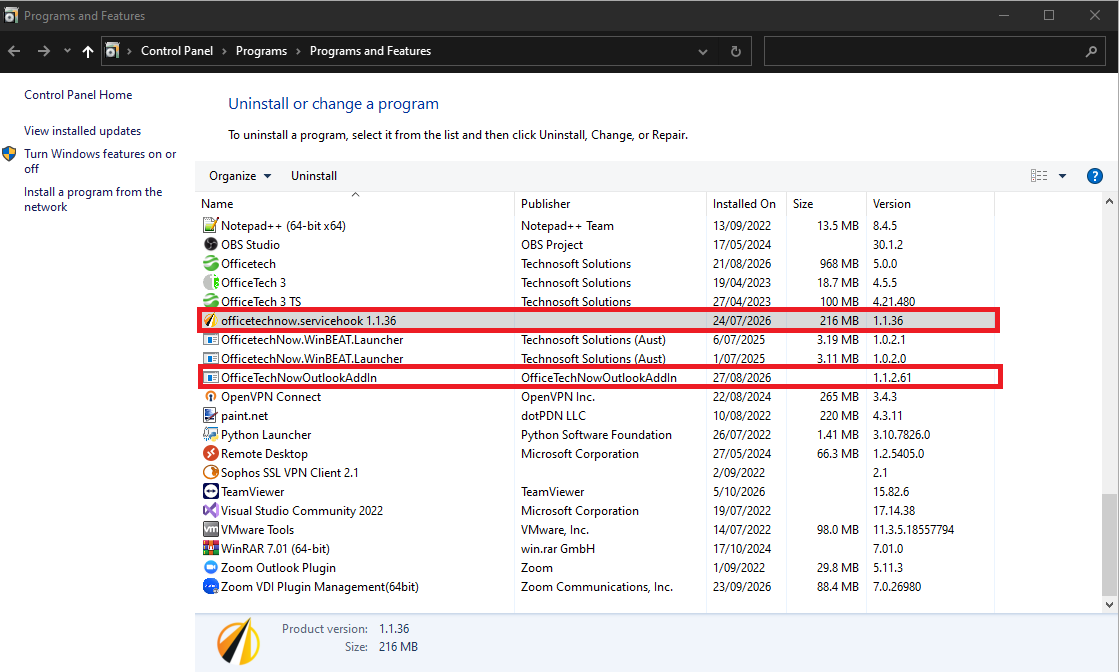
- Check the Version column for each entry and compare it with the table above. You can also select an entry to see its Product version at the bottom of the window.
What to do next
- Both versions match the table (or are higher): you’re up to date and there’s nothing else to do.
- A version is older: uninstall it first (section 2), then install the latest version (section 3).
- An entry isn’t listed: skip ahead to section 3 to install it.
2. Uninstall an outdated version
Remove the older version before you install the update.
- In Programs and Features, right-click the outdated entry (officetechnow.servicehook or OfficeTechNowOutlookAddIn) and select Uninstall.
- Follow the on-screen prompts to finish uninstalling.
- If the other entry is also outdated, repeat these steps for it.
Note: Programs and Features may list other Officetech programs with similar names, such as OfficetechNow.WinBEAT.Launcher. Only uninstall the ServiceHook or Outlook Add-in entry that’s out of date. |
3. Download and install the latest versions
Download the installer for each component that’s missing or that you’ve just uninstalled. You’ll get both installers from inside JAVLN Officetech, so open it first.
Download the ServiceHook
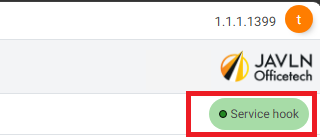
- Click Service hook on the right of the screen, below the JAVLN Officetech logo.
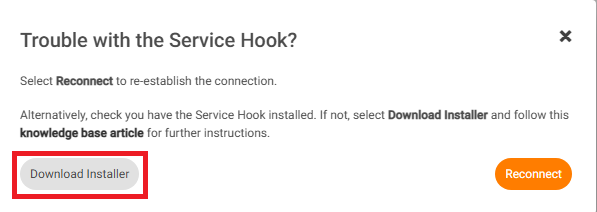
- In the Trouble with the Service Hook? window, click Download Installer.
Download the Outlook Add-in
On the Home tab, click the Download icon (the downward arrow) at the right-hand end of the toolbar.

Run the installers
- Find the installer files you downloaded, usually in your Downloads folder.
- Run each installer and follow the on-screen prompts to finish installing.
4. Confirm the update
- Reopen Programs and Features (press the Windows key, type appwiz.cpl and press Enter).
- Check that officetechnow.servicehook shows version 1.1.36 and OfficeTechNowOutlookAddIn shows version 1.1.2.61.
Tip: if JAVLN Officetech has trouble connecting to the ServiceHook after installing, click Service hook and select Reconnect. |
Need help? If a version still doesn’t match after reinstalling, or you get stuck along the way, raise a support ticket at helpdesk.javln.com. If you don’t have JAVLN Helpdesk access, contact your JAVLN Officetech site administrator, who can raise one on your behalf. |
Was this article helpful?
That’s Great!
Thank you for your feedback
Sorry! We couldn't be helpful
Thank you for your feedback
Feedback sent
We appreciate your effort and will try to fix the article