| How to set up the connection between Steadfast INSIGHT and JAVLN Officetech |
Before you can use the Steadfast INSIGHT integration with JAVLN Officetech, the 2 systems need to be connected. To do this, you add JAVLN’s IP address to 2 settings in Steadfast INSIGHT. The steps below take you through each one.
IP address to add: 20.211.105.20 If a box already has an IP address in it, keep it and add the new one at the end, separated by a semicolon with no space. For example, 192.0.0.1 becomes 192.0.0.1;20.211.105.20. |
1. Add the IP address to the JAVLN API user
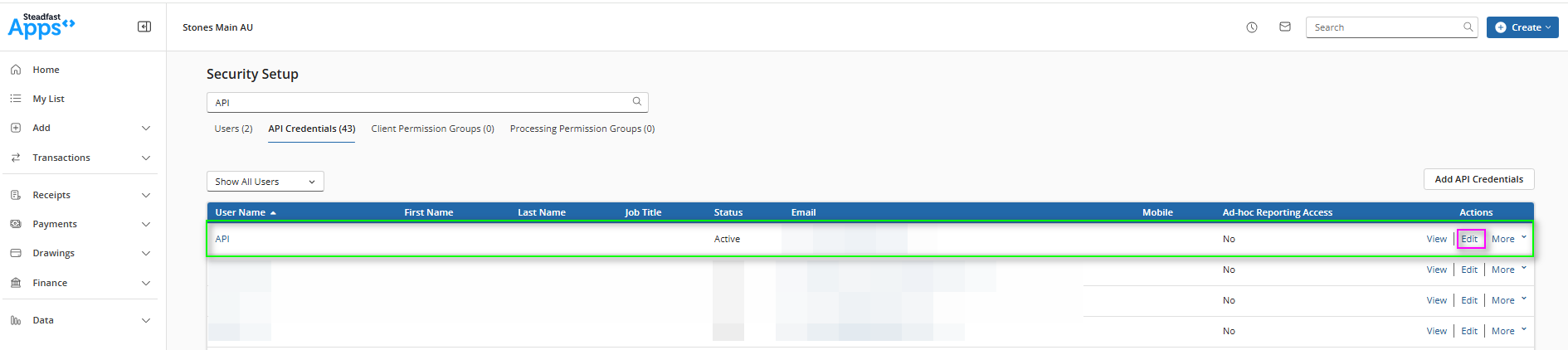
- Open Steadfast Apps and go to Setup > Security.
- Select the API Credentials tab and find the JAVLN API user. Typing API into the search box narrows the list.
- Click Edit in the Actions column for that user.
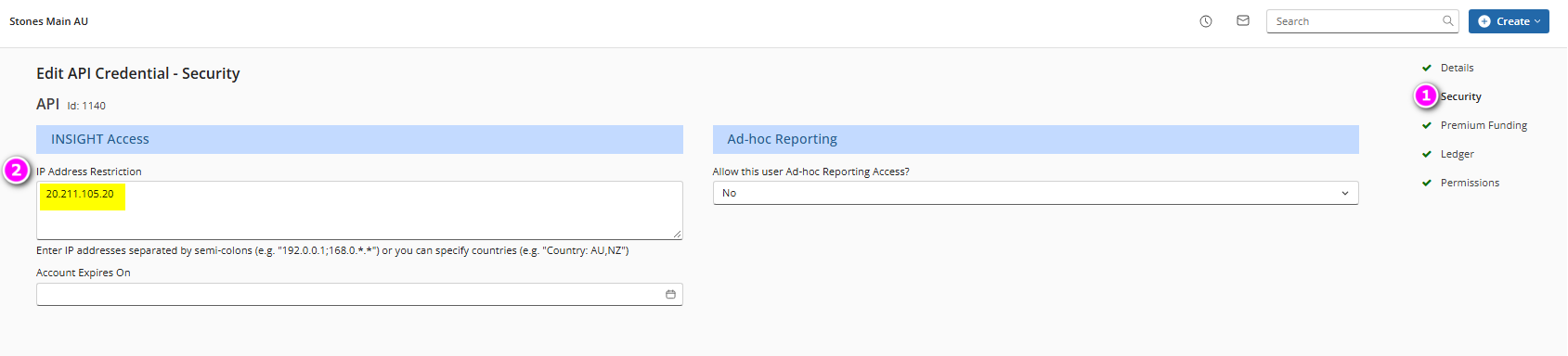
- Click Next to go to the Security step, or select Security from the steps on the right.
- Under INSIGHT Access, enter 20.211.105.20 in the IP Address Restriction box. If the box isn’t empty, add it to the end as shown above.
- Click Save.
2. Add the IP address to Ad-hoc Reporting
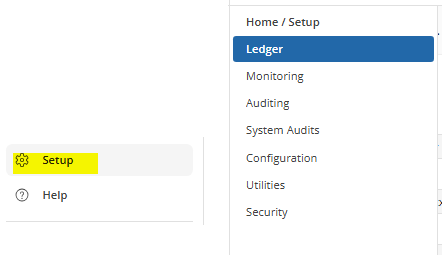
- In Steadfast Apps, go to Setup > Ledger.
- Select Defaults from the steps on the right.
- Click Edit next to the Defaults heading.
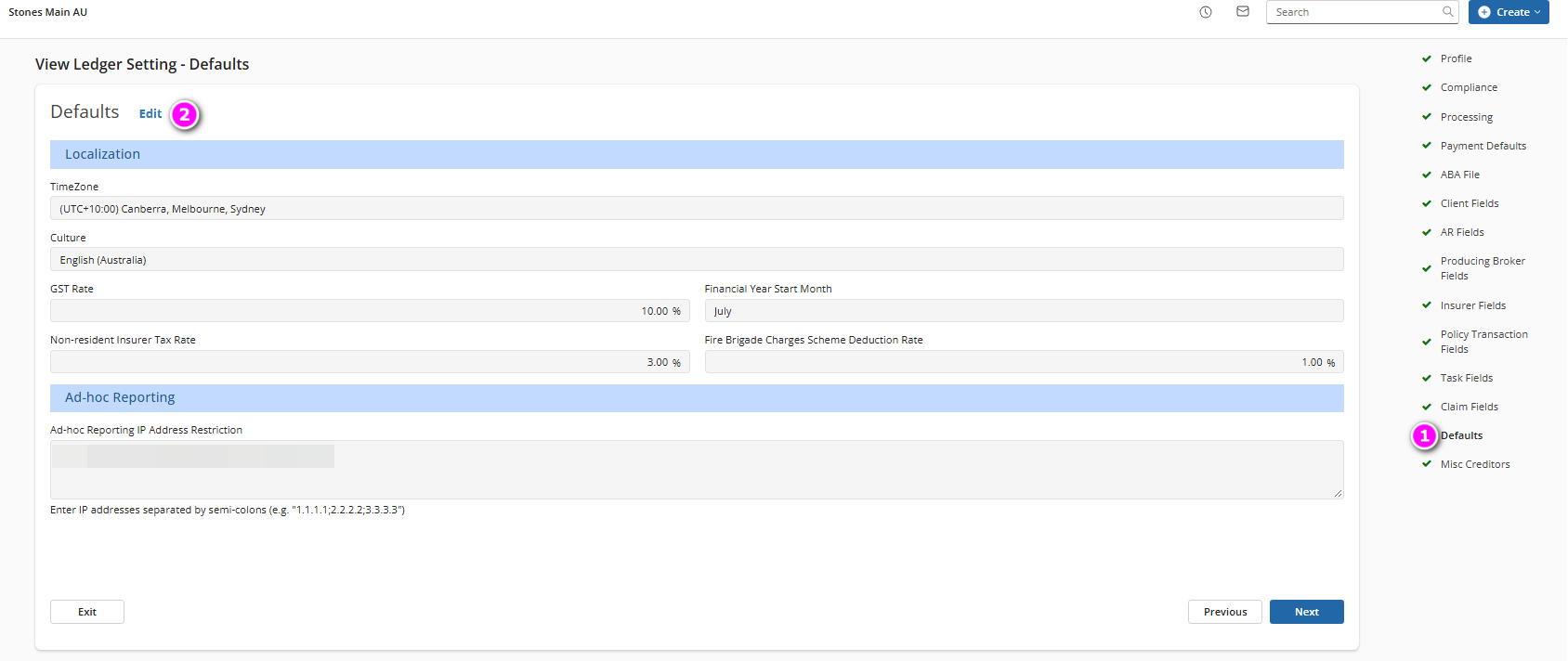
- Under Ad-hoc Reporting, enter 20.211.105.20 in the Ad-hoc Reporting IP Address Restriction box. If the box isn’t empty, add it to the end as shown above.
- Click Save.
Once both settings are saved, the connection between Steadfast INSIGHT and JAVLN Officetech is set up.
Need help? Raise a support ticket at https://helpdesk.javln.com. If you don’t have JAVLN Helpdesk access please contact your JAVLN Officetech site administrator, who can raise a support ticket on your behalf. |
Was this article helpful?
That’s Great!
Thank you for your feedback
Sorry! We couldn't be helpful
Thank you for your feedback
Feedback sent
We appreciate your effort and will try to fix the article