Description:
If a teammate or colleague can access a specific report, document, or module but you cannot, it usually means your account has a different role or permission level assigned to it.
Here is how to check your settings if you have adminstrator access and what information to provide to the IT Helpdesk team for a quick fix.
Step-by-Step Process: User Role and Visibility Investigation
Identify: Determine the exact name of the report, document, or module that the affected colleague cannot see, and note where it should normally be located.
Verify the Working Access: Check the user set up of the colleague who can see the item. Note their specific roles, permissions, and how they navigate to it.
Compare Role Assignments: Review both colleagues' roles side-by-side to identify any missing security groups or access levels on the affected user's account.
Review System Configuration for Report/Module Visibility
If you have administrative access, use the following paths to check the system configuration
admin/users
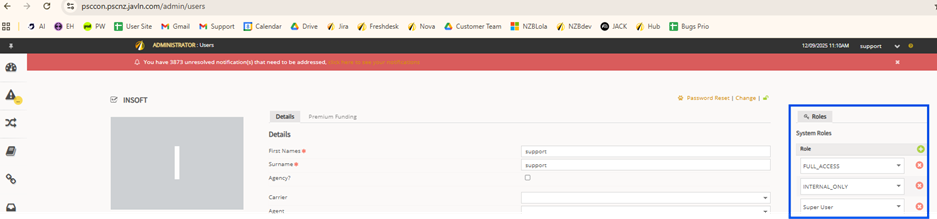
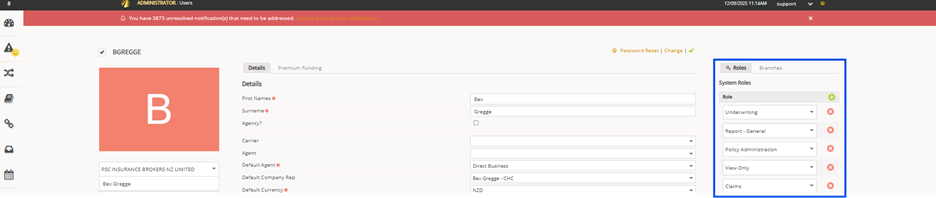
Review System Configuration:
For Reports
Click the Cogwheel icon in the top menu.
Select Reports Manager.
Locate the specific report you are trying to run and check its assigned access permissions.
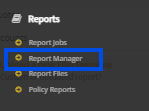
Report Manager
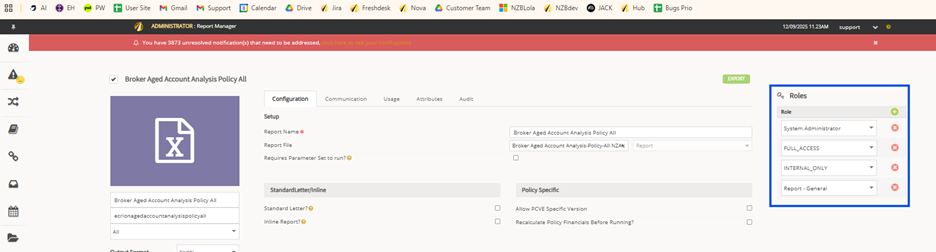
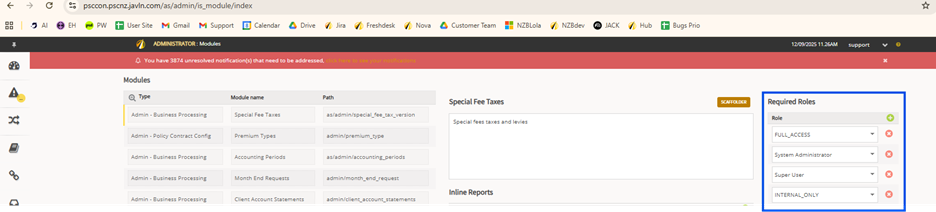
For Modules and Documents
Examine the access controls and permissions tied to the specific user roles.
Check if the item is linked to a document template, and verify that the template itself isn't misconfigured or restricted.
Troubleshooting and Resolution
If it is a Report Issue: Investigate why the correct template or report isn't being pulled by the system. Check for missing or incorrect setting.
If it is a General Access Issue: Adjust the role assignments for the colleague who is having difficulty so they match the working user. If this involves specialised layers like JAVLN MFA or a new laptop setup, ensure their security tokens are fully updated.
Test the Resolution
Have the affected colleague log out of JAVLN Platform completely.
Have them log back in (this forces the system to load their new permissions).
Ask them to access the module or report again to confirm the issue is resolved.
If you are still having issues, please raise a ticket via helpdesk and we will be happy to help you!
Was this article helpful?
That’s Great!
Thank you for your feedback
Sorry! We couldn't be helpful
Thank you for your feedback
Feedback sent
We appreciate your effort and will try to fix the article