Overview
ServiceHook connects JAVLN Officetech to Microsoft Word, Excel, PowerPoint, and Outlook, so documents can be saved directly to JAVLN.
This guide explains how to update ServiceHook when required.
ServiceHook automatically updates
ServiceHook supports automatic updating to the latest version when the ServiceHook is started.
To check if the ServiceHook is running the latest version, follow these steps:
- Click on the Windows System Tray on the desktop and locate the ServiceHook icon
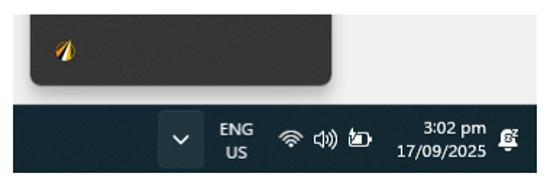
- Right click the ServiceHook icon and click ‘About’
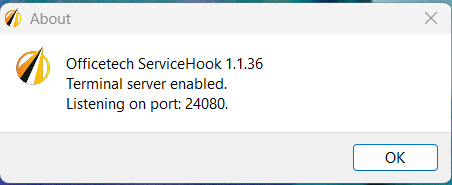
Compare the ServiceHook version number to the latest version listed in the release notes.
If the ServiceHook version is not the latest version:
- Login in to JAVLN Officetech
- Click the ServiceHook button on the top right hand corner

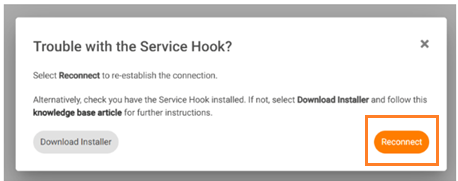
This opens the "Trouble with the ServiceHook?" dialog shown below. Click on the Reconnect button
Confirm the ServiceHook version number by repeating the steps above.
If the above process does not update the ServiceHook version as expected, try restarting Windows, to restart ServiceHook and check the version again.
Manually installing or updating the ServiceHook
If any of the above steps did not update the ServiceHook, start the reinstallation for ServiceHook using the below steps.
Part 1: Uninstall the Current ServiceHook
Log out of JAVLN Officetech
On each user PC, open Add or Remove Programs (Appwiz.cpl) and uninstall the existing JAVLN Officetech ServiceHook.
Confirm that WebView2 is installed on the PC. If it isn't, you can get it from here
Part 2: Download and Enable the New ServiceHook
Step 1. Open the ServiceHook Prompt
- Log in to JAVLN Officetech
- Click the ServiceHook button in the top right corner of the screen.

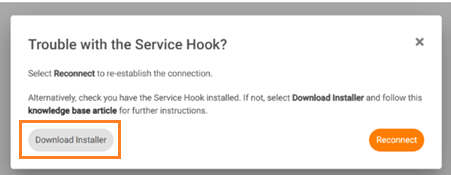
- This opens the "Trouble with the ServiceHook?" dialog shown below.
Step 2. Download and Install
- Click Download Installer to download and install the ServiceHook on the user's PC.
- Once installed, the ServiceHook icon appears in the Windows taskbar.
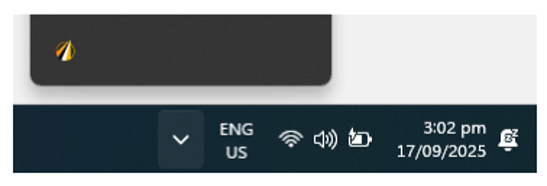
Note:
- The user must have permission to install applications on their profile.
- ServiceHook must be installed separately on each user profile.
Step 3. Enable the ServiceHook
- ServiceHook must be installed separately on each user profile.
- Once installation is complete, select "click here to enable it" to start the ServiceHook.
- Windows will show pop-ups asking you to confirm that the site can open the JAVLN Officetech link, accept these to continue.
Step 4. Connect from Microsoft Office
- Open Word, Excel, PowerPoint, or Outlook and launch the Save Form.
- Click Open JAVLN Officetech to initiate the connection.

Troubleshooting
If you are unable to reinstall the ServiceHook using the steps above, you can download the installer file directly here.
Was this article helpful?
That’s Great!
Thank you for your feedback
Sorry! We couldn't be helpful
Thank you for your feedback
Feedback sent
We appreciate your effort and will try to fix the article