This guide provides step-by-step instructions for updating Fire and Emergency New Zealand (FENZ) or Fire Service Levies (FSL) globally within the system configuration.
Adding Taxes and Levies to the Policy
Policies Menu > Basic Policy Taxes > Look for the Risk from the dropdown list
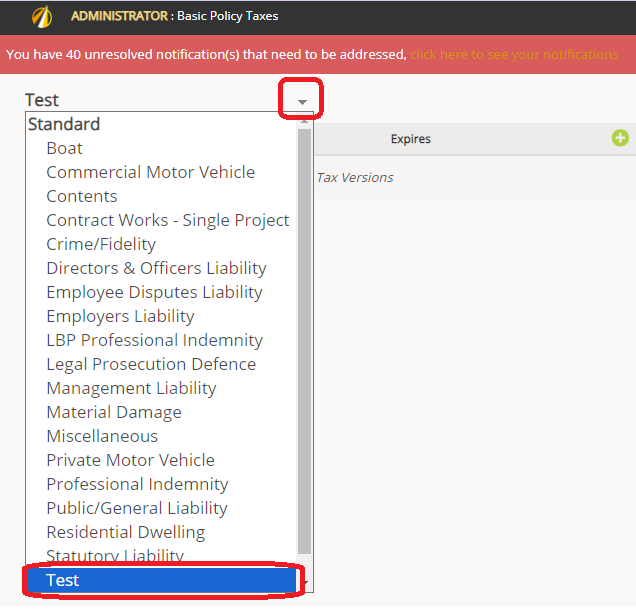
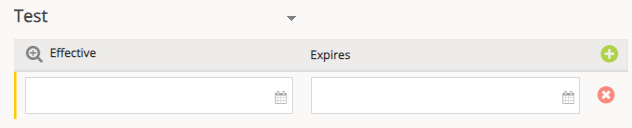
After selecting the Policy select the green + sign and enter the Effective Date (retroactive date)
IMPORTANT
Do not enter an Expiry Date. If or when a new basic policy tax is required, JAVLN BMS will automatically expire the previous version.
On the right side, select the green + sign
Seq: Add the sequence that should be displayed on the screen. They need to be different
Tax or Levy: From the dropdown list, select the Tax or Levy
Tax Type: From the dropdown list select if the Tax is a Rate or a Fixed Amount
Allow Override: If the user should have the ability to override the Tax or Levy, select the checkbox
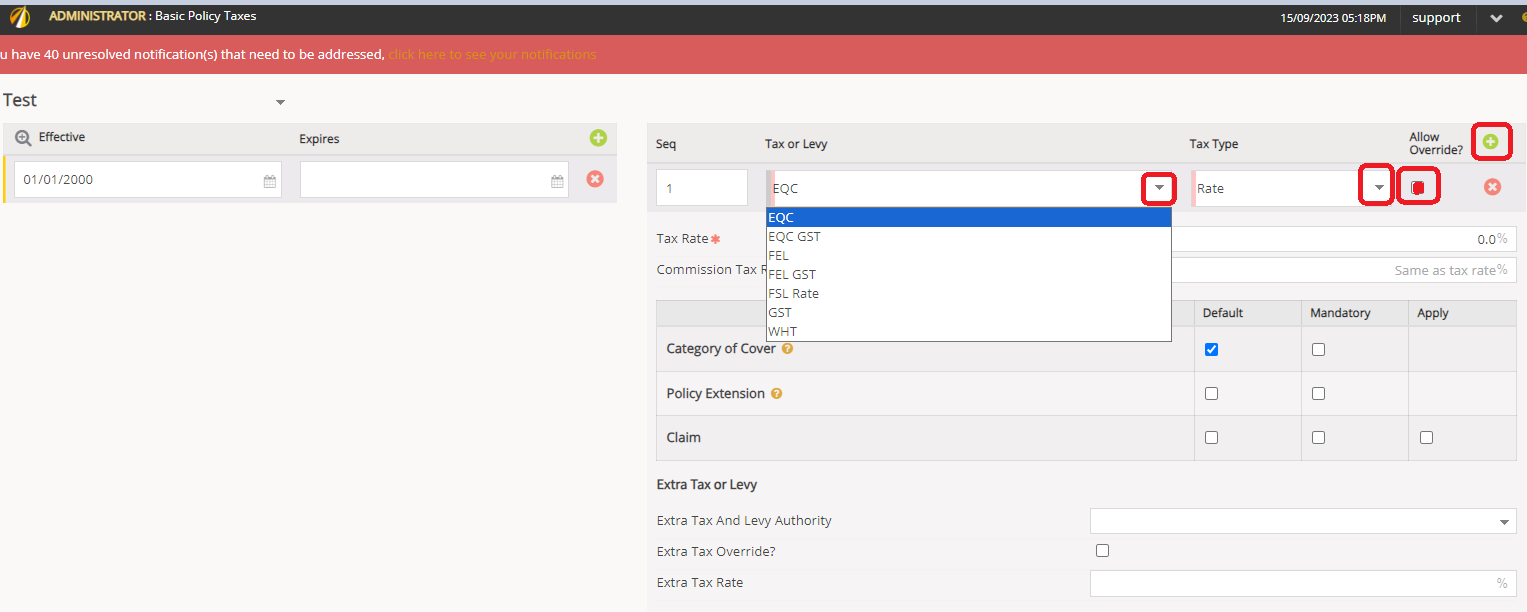
Tax Type Rate
Tax Rate: Set the commission Rate. If the Allow Override checkbox is ticked, the user will be able to override it
Category of Cover, Policy Extension, and Claim: Tick the boxes when the Tax is applicable
Then press SAVE
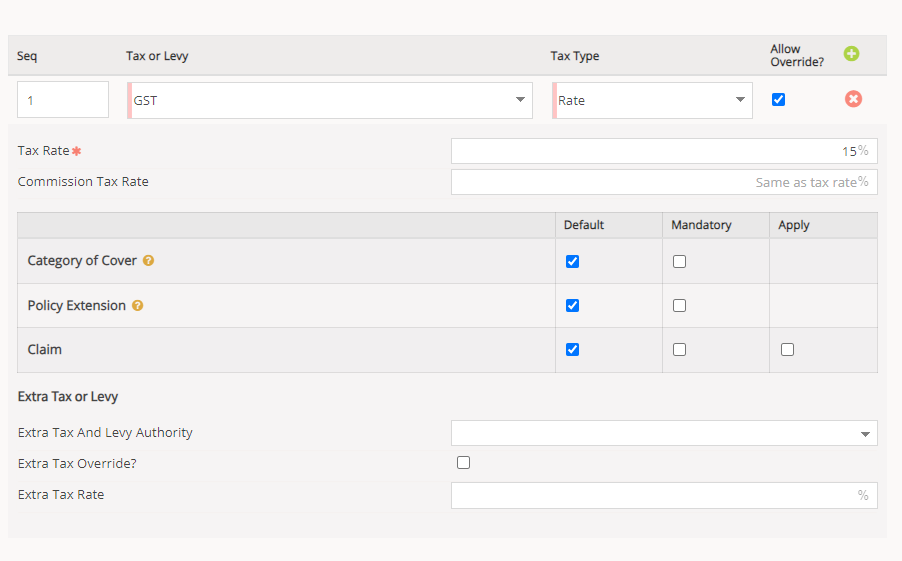
Tax Type Fixed Amount
Fixed Amount: you leave it blank, so the user needs to enter when doing the quote or you can enter the amount if it is always the same. (If the allow override is ticked, the user can override this value)
Pro Rata Fixed Amount?: If the Tax should be prorated, tick the box Pro Rata Fixed Amount
Policy Item, Category of Cover, Policy Extension, and Claims: Tick the boxes when the Levy is applicable
Extra Tax and Levy Authority: If the Levy attracts GST, look for the Levy name GST and select it
Extra Tax Override: If the Tax for the Levy can be overridden, tick the checkbox
Extra Tax Rate: Set the Tax Rate
Press SAVE
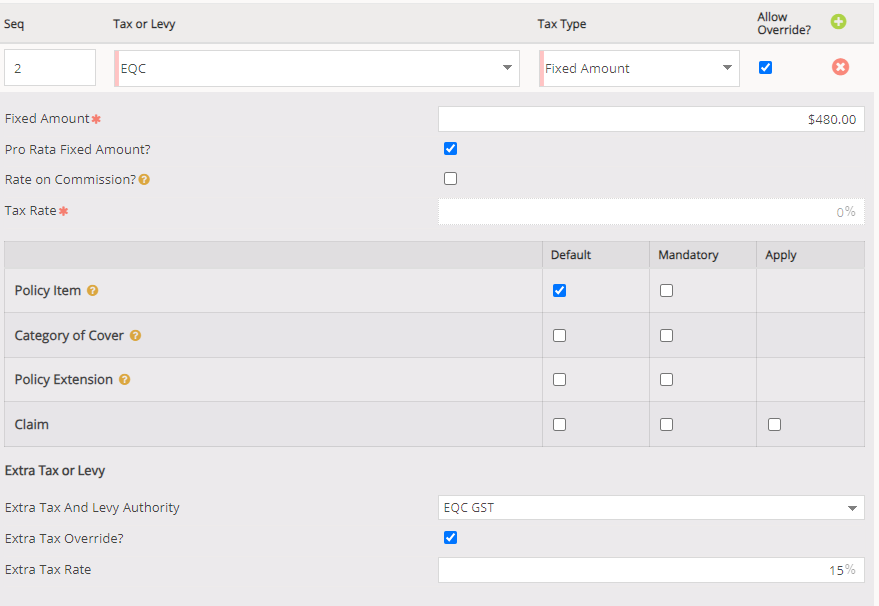
For the example above, these are the Taxes and Levies Applicable to this Risk

Carrier Contract
Setting up Policy Wordings and Taxes and Levies that are passed onto the Carrier
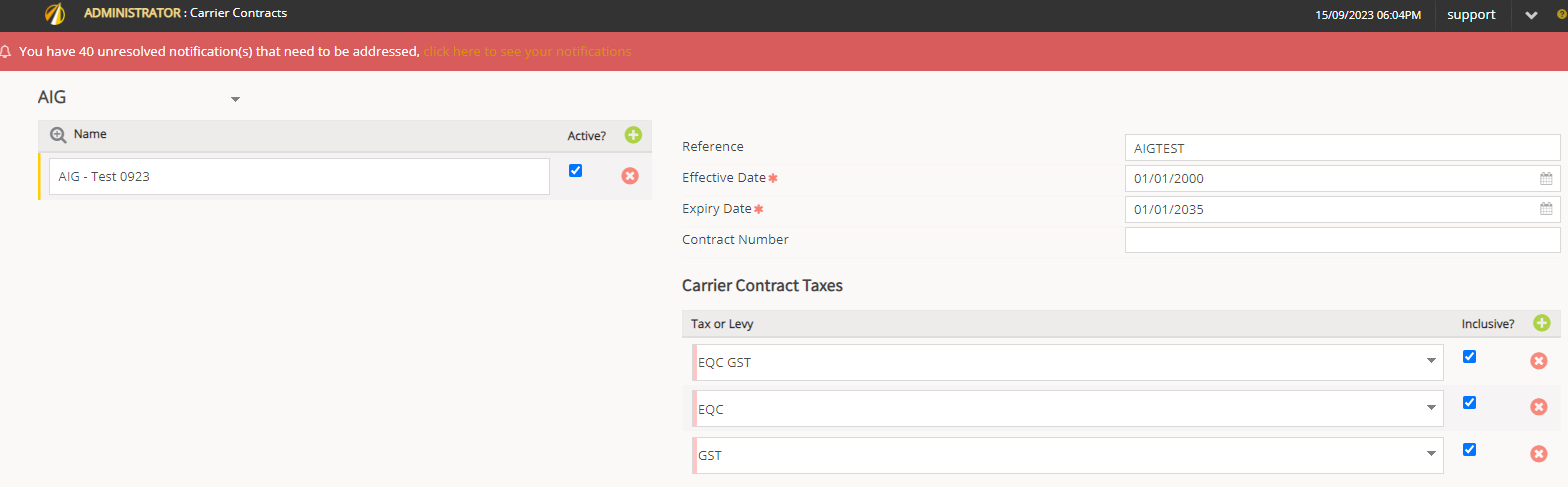
Policies Menu > Carrier Contract > Look for the Carrier(s) from the dropdown list
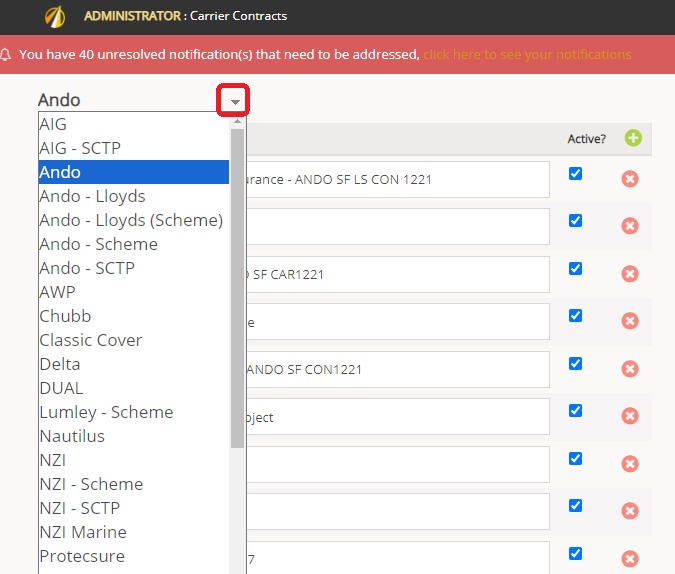
Select the green + sign and enter the Policy Wording name
On the right side add the following:
Reference
Effective Date (retroactive date)
Expiry Date (date in the future)
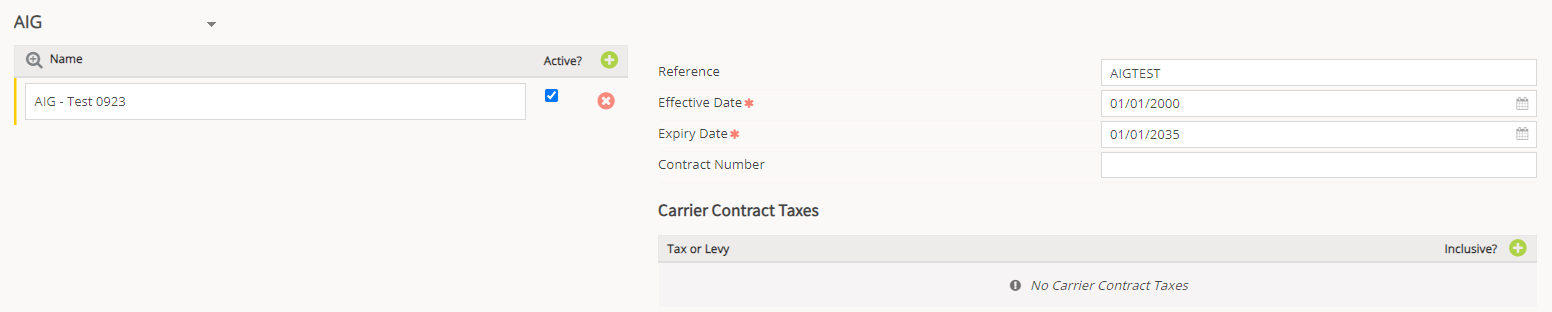
Carrier Contract Taxes
Select the green + sign to add all the Taxes and Levies that should be passed on to the Carrier
Select the Taxes and Levies from the dropdown list
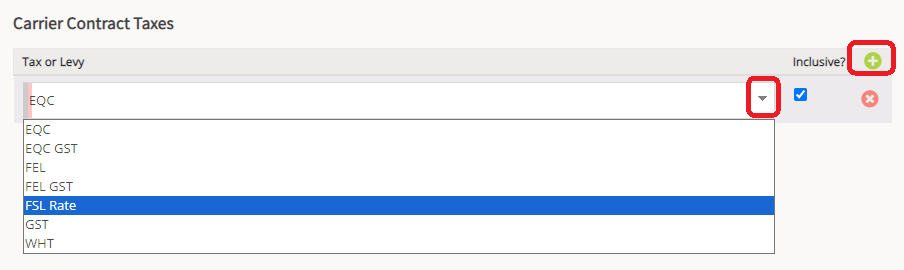
Select the green + sign to add more Taxes and Levies
Then press SAVE
Notes: if more than one Carrier will commercialize this Product, repeat the same steps for each Carrier
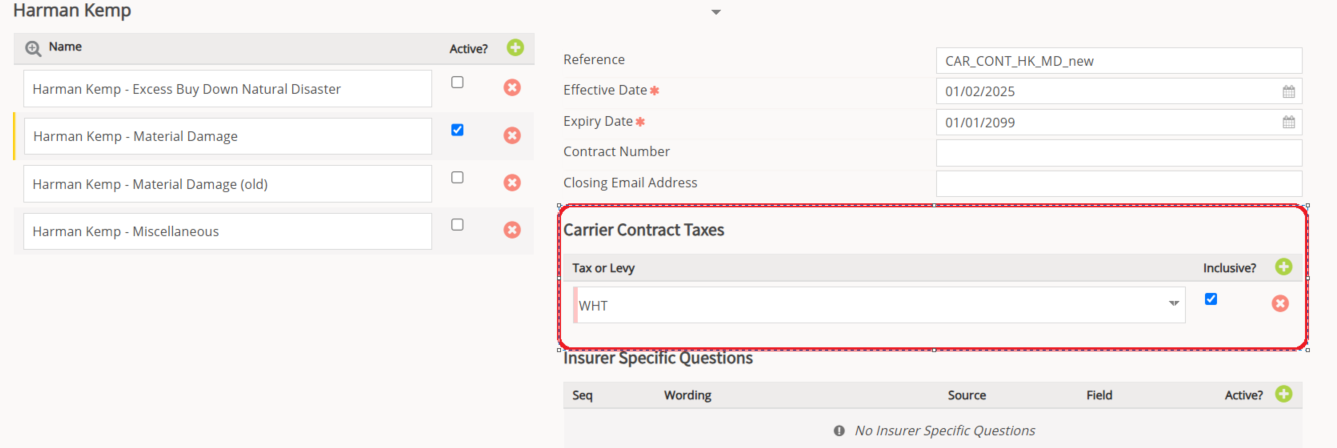
For Overseas Insurers, make sure only WHT is added under Carrier Contract Taxes
Was this article helpful?
That’s Great!
Thank you for your feedback
Sorry! We couldn't be helpful
Thank you for your feedback
Feedback sent
We appreciate your effort and will try to fix the article